

Pro Designer AutomateNew
Batch edit hundreds of files in one go, by saying what to do
Pro Designer Automate is batch image and PDF processing in your browser: add bleed, resize, convert to CMYK or PDF, add a logo or rename a whole folder of client files, from plain words or a ready-made recipe.
Free account, no card. Already using aiKit? Log in to open Pro Designer Automate
What you get
Do the same thing to many client files at once.
Say it once, done to every file
Type "add a 1/16 inch bleed and save as PDF" and Automate turns it into steps you can see and change. Anything it isn't able to do is listed first, before a single file runs.
Bleed that keeps the art whole
Mirrored bleed extends the edges outward, so the artwork itself stays at 100% and a 2.5 × 3.5 card becomes 2.625 × 3.625 with nothing cropped.
Client files as they arrive
Drop PDFs (every page), Illustrator, PSD, JPG, PNG, TIFF or WebP files, or saved Pro Designer projects. PDF and Illustrator pages stay vector when every step allows it.
Recipes to start from
12 ready-made recipes, such as Print-ready batch, Brand scrub and Product photo cleanup, plus automations you save, rename and duplicate yourself.
Names that say what changed
Files come out named like card_2.625x3.625_bleed.pdf, with naming tokens you can change. Originals are never overwritten.
Check before you run
Preview the result on the first file, set steps to run only on files that need them, and save extra formats of each file in the same batch.
Every feature
Everything in Pro Designer Automate
The complete list, from the tool as it works today.
- Drop PDF (every page), Illustrator, PSD, JPG, PNG, TIFF or WebP files, or saved Pro Designer projects
- Say it in plain words ("add a 1/16 inch bleed and save as PDF"); anything it can't do is said first
- 12 ready-made recipes and your own saved automations
- Steps: mirrored bleed, exact size, scale, resolution, CMYK/grayscale, rotate, crop, trim, logo, words
- PDF and AI pages stay vector with a TrimBox when every step allows it
- Names like card_2.625x3.625_bleed.pdf; one ZIP, a folder, or the Graphics Library
What’s included
What you get with Pro Designer Automate, and how it works with the rest of aiKit
Included with a free aiKit account
- Every Automate step and the 12 ready-made recipes, with a free aiKit account
- Your own saved automations, with rename and duplicate (kept in this browser for now)
- ZIP download, save into a folder in Chrome or Edge, or add to your Graphics Library (always your choice)
- Preview on the first file before a batch runs
What uses AI, and what’s free
Plain steps run in your browser and use no AI allowance. Turning words into steps and custom steps that change what is in a picture use your monthly AI allowance.
Works with your other aiKit tools
- Pro Designer: Open Automate from File > Automate, and open saved Pro Designer projects as input files.
- Graphics Library: Send finished files to your Graphics Library when you choose to.
Keep Pro Designer Automate in any of your kits, next to the tools you use with it. One account and one monthly AI allowance cover every tool.
How it works
From first click to finished, in 4 steps.
Drop the files
Open Automate from File > Automate in Pro Designer or at aikit.ai/tools/pro-designer/automate, and drop 2 or 500 files.
Say what to do, or pick a recipe
Write it in plain words, choose a recipe, or build the steps yourself: bleed, exact size, scale, resolution, color mode, rotate, crop, trim, logo, words.
Preview the first file
See exactly what the first file will look like, adjust any step, and choose which files each step runs on.
Run and save
Every file shows its own progress. Download one ZIP, save straight into a folder in Chrome or Edge, or add them to your Graphics Library.
Who it’s for
How different businesses use Pro Designer Automate
A folder of business cards, all with bleed
A print shop gets 40 card files at 2.5 × 3.5 with no bleed. One run adds a mirrored eighth-inch bleed, converts to CMYK and names every file with its new size.
Every client photo, sized for every channel
An agency turns a shoot of 60 photos into web, email and social sizes in one batch, each saved with a name that says where it goes.
Product photos cleaned up in bulk
An online shop runs the Product photo cleanup recipe on a new collection, then adds the store logo to each picture.
Watermark a whole listing
An agent adds a small logo to all 35 listing photos and resizes them for the listing site, without opening a single one by hand.
Sponsor logos for every screen
An event company resizes a batch of sponsor logos to the exact sizes the screens and printed programs need.
Ideal for
- Print shops getting a folder of client art that all needs bleed, CMYK or a new size
- Anyone making web, email or social versions of many pictures
- Watermarking or adding a logo to a whole set
Good to know
- Not for: Editing one design by hand (use Pro Designer)
- Runs in your browser: hundreds of large print files are best done in a few batches.
- Saved automations stay in this browser for now.
Why aiKit
Pro Designer Automate vs. desktop editor actions and image processors
| Point | aiKit Pro Designer Automate | Desktop editor actions and image processors |
|---|---|---|
| Setting it up | Say what to do in plain words, or pick a recipe; the steps appear for you to check. | Record an action step by step and hope it replays the same way. |
| Print bleed | Mirrored bleed keeps the artwork whole and names the file with its new size. | Resize the canvas and fill the edges by hand on each file. |
| Mixed files | PDF pages, Illustrator, PSD and photos in one batch; vector stays vector when it can. | Often pictures only, with PDFs flattened. |
| Honesty | Anything a step isn't able to do is listed first, per file. | A batch can fail quietly halfway through. |
| Where it runs | In your browser, nothing to install. | Installed software on one computer. |
Questions
Pro Designer Automate: questions people ask
How do I batch add bleed to many PDF files?
Is there a Photoshop Actions alternative that runs in the browser?
Can I bulk resize images and keep the names organized?
Can I batch convert files to CMYK for printing?
Can I watermark or add a logo to a whole set of photos?
Which file types does Automate open?
Can I tell Automate to run a step only on some files?
Does batch processing in aiKit use AI credit?
How many files can I process at once?
Does aiKit have a Photoshop-style editor?
What file types can Pro Designer open and save?
How do I put a photo inside a shape or box in Pro Designer?
Can I choose the quality and file size when saving from Pro Designer?
Can Pro Designer add bleed or resize many files at once?
How do I draw a box and give it a color, an outline or an effect in Pro Designer?
Works well with
Tools to add to the same kit
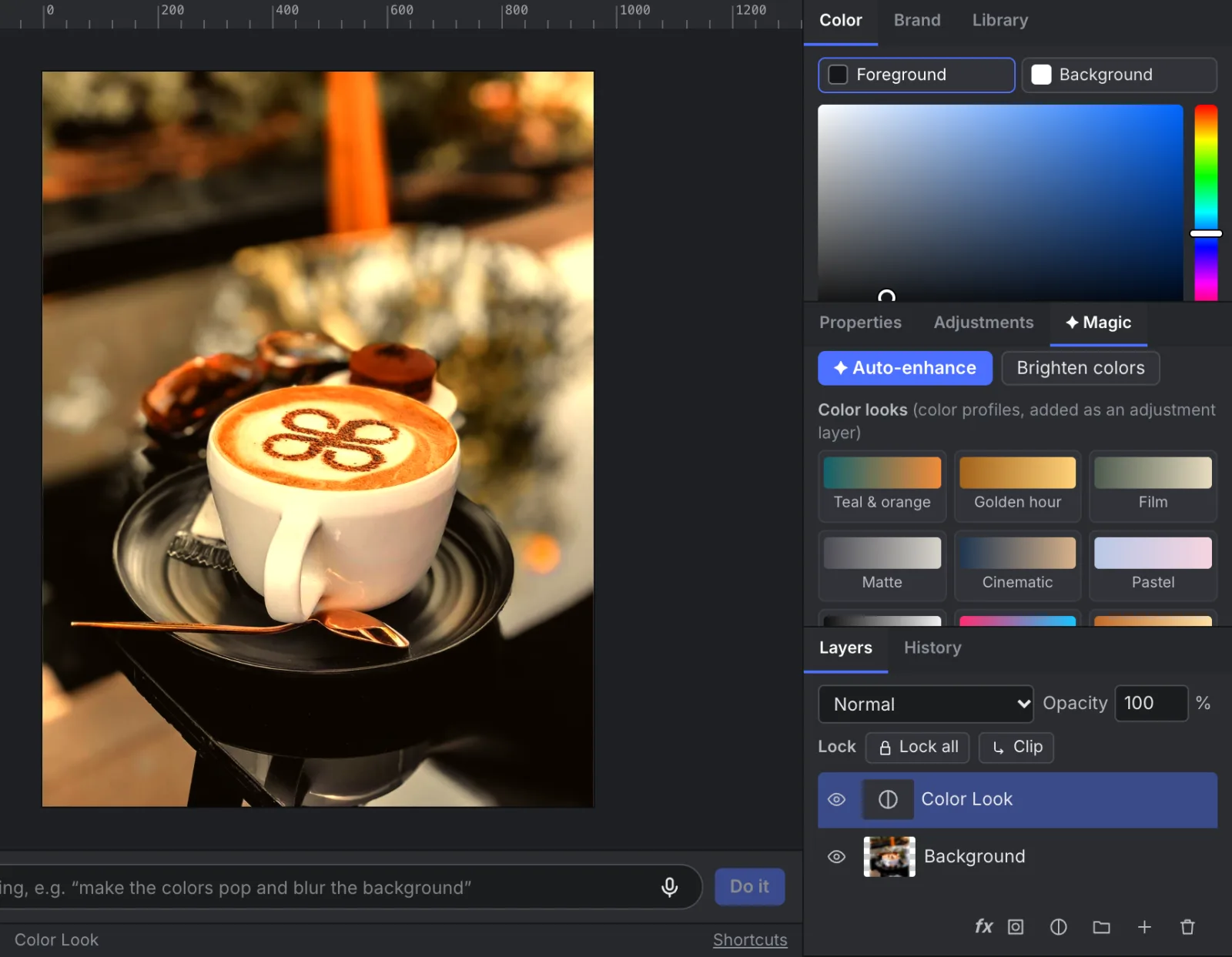
Pro Designer
NewPro Designer gives you layers, masks, selections, retouching brushes and PSD files with nothing to install. Ask for any change in plain words, and the free on-device tools do most of the work.
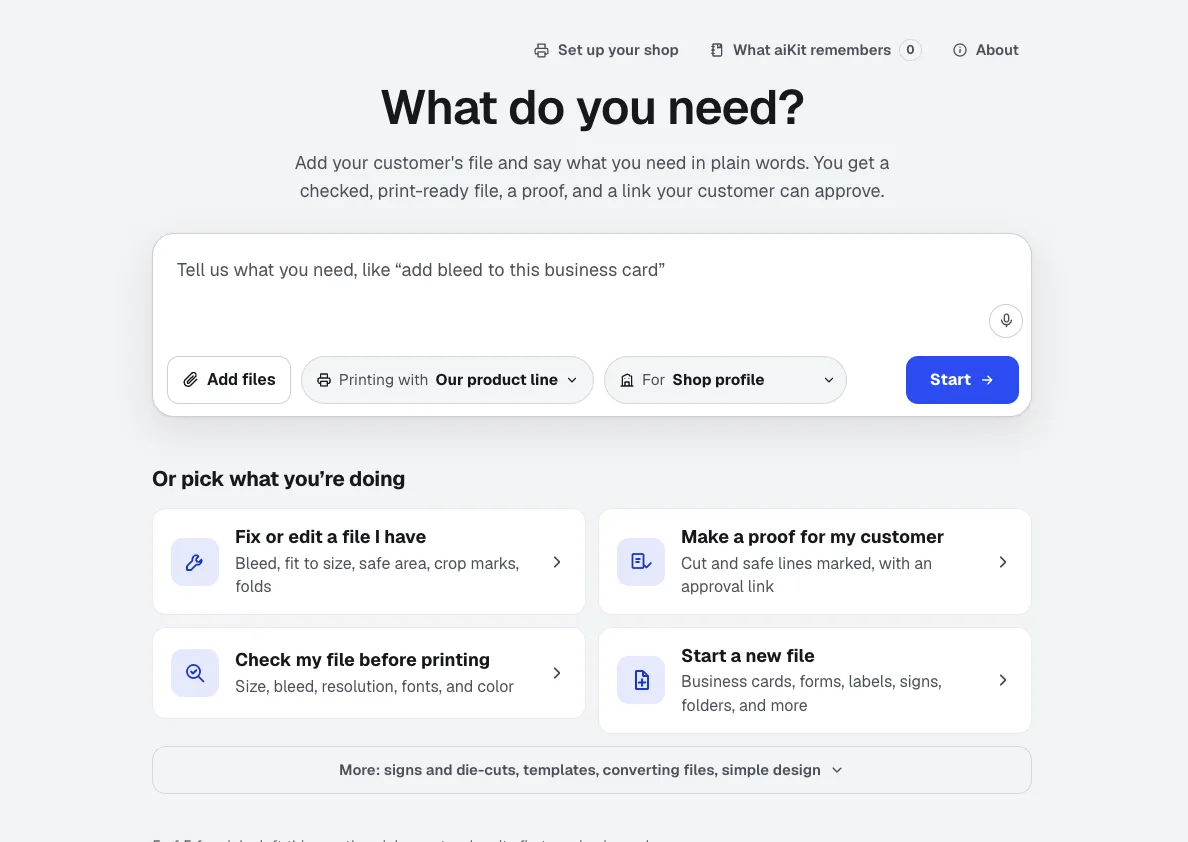
Prepress Studio
NewDrop in a file or a logo and say it in plain words: add bleed, resize, check it, make a notepad. Prepress Studio is print preflight software that makes the fix too: it builds the file to exact print numbers, shows what it changed, and sends a proof your customer approves.
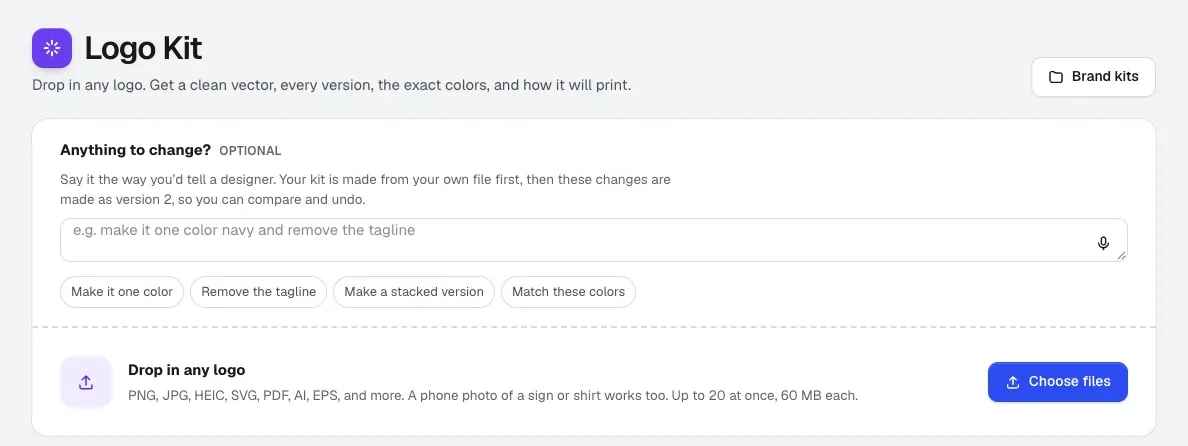
Logo Kit
Convert a logo to vector from a blurry PNG, a PDF or a photo of a sign. Logo Kit gives you a clean vector built from your own file, every version you need, exact brand colors, and a ready-or-not answer for each print method.
Use Pro Designer Automate today.
Make a free aiKit account and open Pro Designer Automate, plus every other tool in your kit.
Page last checked against the product on 2026-10-16.