

Print file check on upload
Know if a customer's file will print before you open it
aiKit's print file checker reads every file sent through your aiKit website's Send us your file page as it arrives: size, bleed, resolution, fonts, and colors. Fix it in Prepress Studio is one click away.
Free account, no card. Already using aiKit? Log in to open Print file check on upload
What you get
Every print file a customer sends through your website's Send us your file page is checked as it arrives (size, bleed, resolution, fonts, colors), with Fix it in Prepress Studio one click away.
Checked the moment it arrives
The customer gets their "File received" answer right away and never waits. A few seconds later the result is on the request.
One clear verdict
Looks print-ready, Worth a look, or Must fix, with up to five plain lines like "A photo is only 96 ppi at its printed size."
The five things that stop a job
Finished size, bleed (1/8 in is the usual), the lowest photo resolution at print size, fonts not embedded, and RGB or spot color.
Fix it in one click
Fix it in Prepress Studio opens with the customer's file already added and a starting request you can change. Nothing runs until you press Start.
Only you see it
The result is for the owner and staff on the Requests tab. Your customer never sees it.
Every feature
Everything in Print file check on upload
The complete list, from the tool as it works today.
- A result on each file in Requests: Looks print-ready, Worth a look, or Must fix
- Plain lines for size, bleed, resolution, fonts and colors
- Fix it in Prepress Studio: opens with the file added; nothing runs until you press Start
- Check again any time
What’s included
What you get with Print file check on upload, and how it works with the rest of aiKit
Included with a free aiKit account
- A check on every print file sent through your aiKit website's Send us your file page
- Looks print-ready, Worth a look, or Must fix on each file in Requests
- Plain lines for size, bleed, resolution, fonts, and colors
- Check again any time
- Fix it in Prepress Studio, with the file already added
What uses AI, and what’s free
The check is code, not AI, so it uses none of your monthly AI allowance and no Prepress Studio job. A fix becomes a Prepress Studio job only when you press Fix it in Prepress Studio and then Start.
Works with your other aiKit tools
- Prepress Studio: Fix it in Prepress Studio opens the customer's file there; nothing runs until Start.
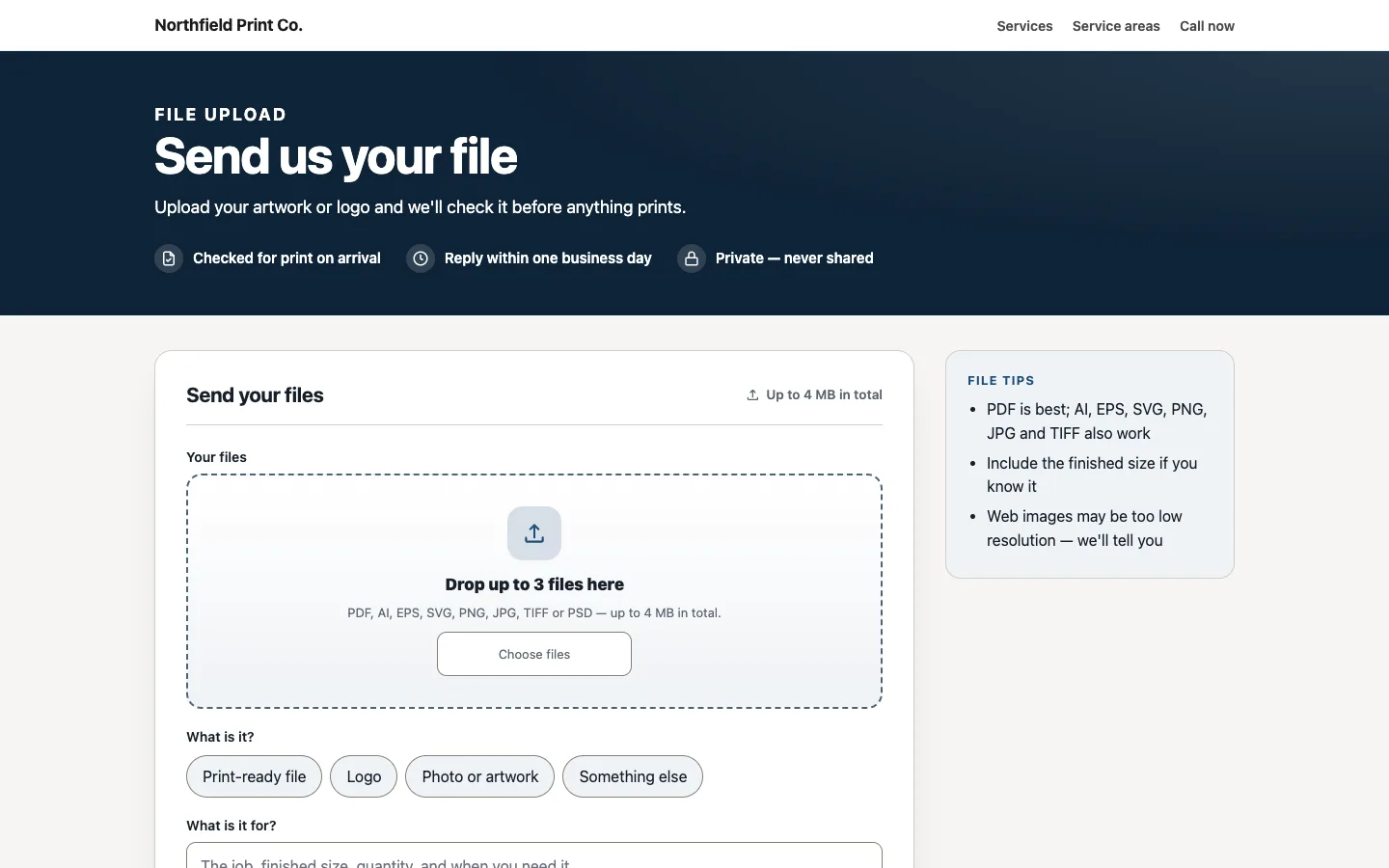
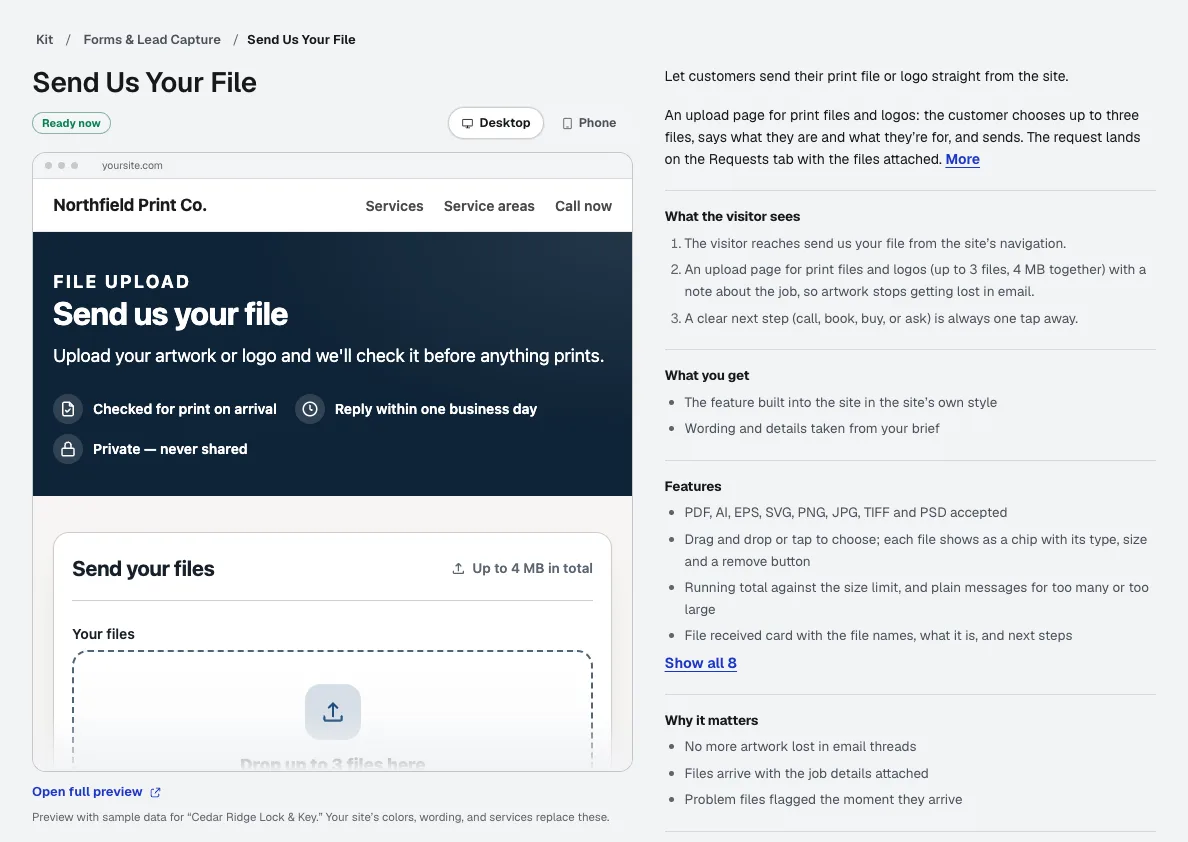
- Your websites: Send us your file is a module on your aiKit website; uploads land on Requests.
- aiKit Hub: Website requests can become cards on a Hub board, in the list you pick.
Keep Print file check on upload in any of your kits, next to the tools you use with it. One account and one monthly AI allowance cover every tool.
How it works
From first click to finished, in 4 steps.
Add Send us your file to your website
Add it from the Tool library or the project's Kit tab. Your site gets a page where customers send up to 3 files with a note about what they're for.
A customer sends a file
PDF, AI saved with PDF content, EPS, PNG, JPG, TIFF, and PSD files are checked as soon as the request is stored.
Read the result on the request
Under each file on the Requests tab: the verdict and plain lines for size, bleed, resolution, fonts, and colors.
Fix it or reply
Open it in Prepress Studio to fix it, or go back to the customer for a better file. Check again runs the check once more any time.
Who it’s for
How different businesses use Print file check on upload
Sort the morning's uploads at a glance
Harbor Line Print Co. opens Requests to find four files marked Looks print-ready and one marked Must fix for a 96 ppi photo. The must-fix goes to Prepress Studio first.
Banner files before the event deadline
An event signage company sees right away that a banner file has fonts that aren't embedded, and asks the customer for a new file the same day, not the day before the show.
Client artwork for a print run
An agency takes client logos and photos through its site. RGB files show as Worth a look, so the team knows which ones to convert before they go to the printer.
Vehicle lettering and yard sign art
A sign and lettering shop sees which customer logos are sharp enough before quoting, and which need a vector file.
Ideal for
- Print shops and sign shops taking files through their website
- Anyone whose customers send logos and artwork
Good to know
- Not for: Checking against a product the customer picked; it reads the file itself (it doesn't know the order yet)
- Not for: Your customers: they never see the result
- PDF, AI (saved with PDF content), EPS, PNG, JPG, TIFF and PSD are checked; SVG files are not.
- Files without a marked trim are read from their page size, so the bleed line may ask you to confirm the finished size.
- Files can be up to 4 MB together (the upload page's own limit).
Why aiKit
Print file check on upload vs. opening every file by hand, or desktop preflight software
| Point | aiKit Print file check on upload | Opening every file by hand, or desktop preflight software |
|---|---|---|
| When the check happens | Automatically, the moment the file arrives on your website | When someone gets around to opening it |
| What you read | One verdict and up to five plain lines | A long technical report, or nothing |
| Going from problem to fix | Fix it in Prepress Studio, file already added | Download, open, fix, export, upload |
| Cost of each check | Measured by code, no AI used | A paid seat for each person who checks files |
Questions
Print file check on upload: questions people ask
How can I check customer print files automatically when they upload?
What does aiKit's print file check look at?
Do my customers see the result of the print file check?
Does the print file check use AI or cost anything?
Which file types does the print file check read?
Why does the check ask me to confirm the finished size?
Can I fix a customer's file right from the request?
How big can customer files be on the Send us your file page?
Do I need an aiKit website to use the print file check?
What does Check again do?
Is there a free print file checker for customer uploads?
Works well with
Tools to add to the same kit
Prepress Studio
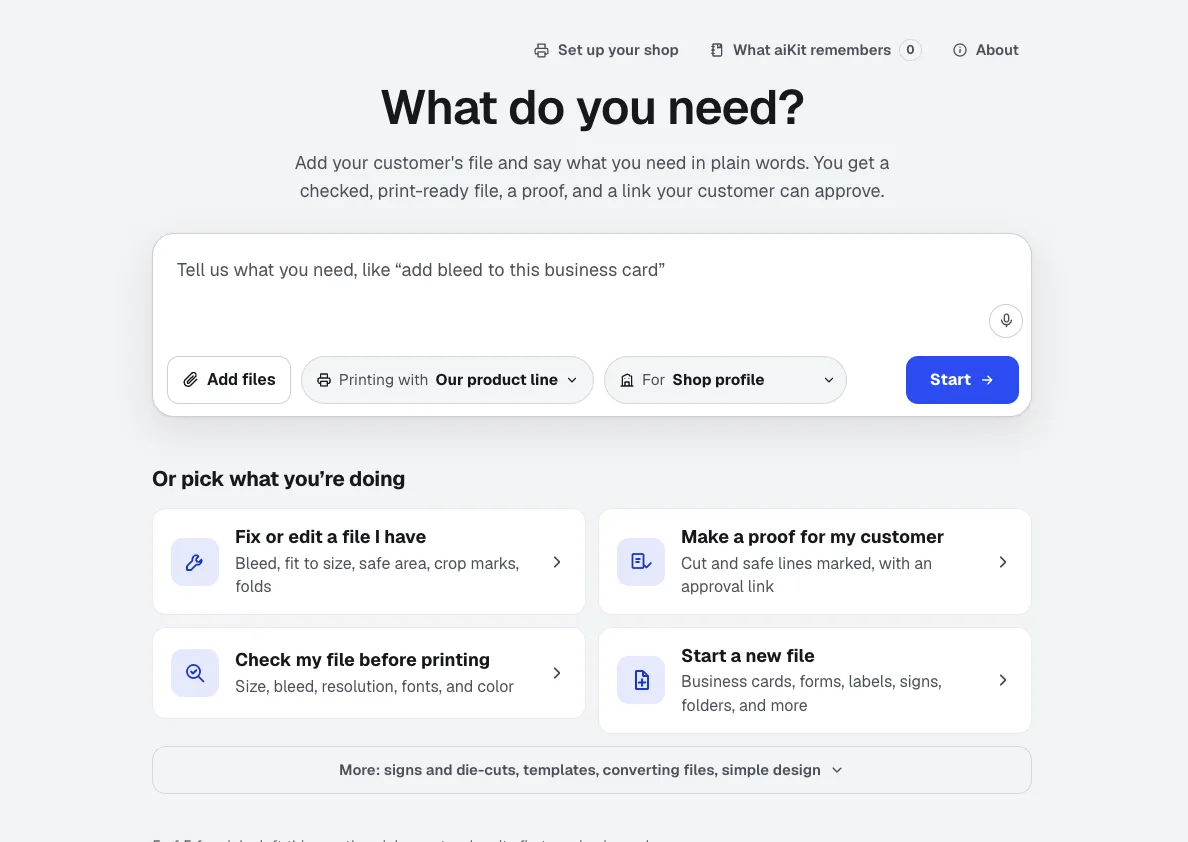
NewDrop in a file or a logo and say it in plain words: add bleed, resize, check it, make a notepad. Prepress Studio is print preflight software that makes the fix too: it builds the file to exact print numbers, shows what it changed, and sends a proof your customer approves.
Your websites
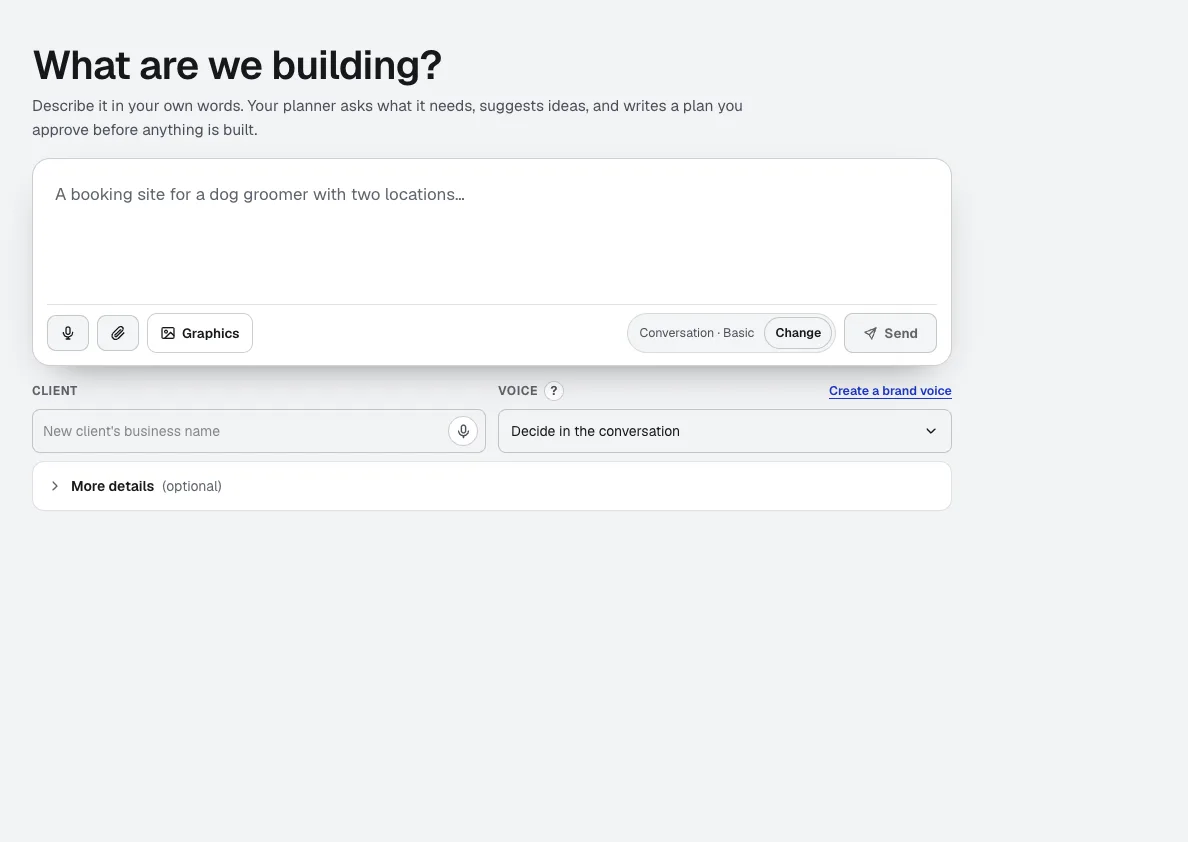
aiKit is an AI website builder with hosting: it plans the pages, writes the copy, builds the site and hosts it. Every later change is a request in your own words, saved as a version you can undo, for your own business or for every client you run sites for.
Quote Studio
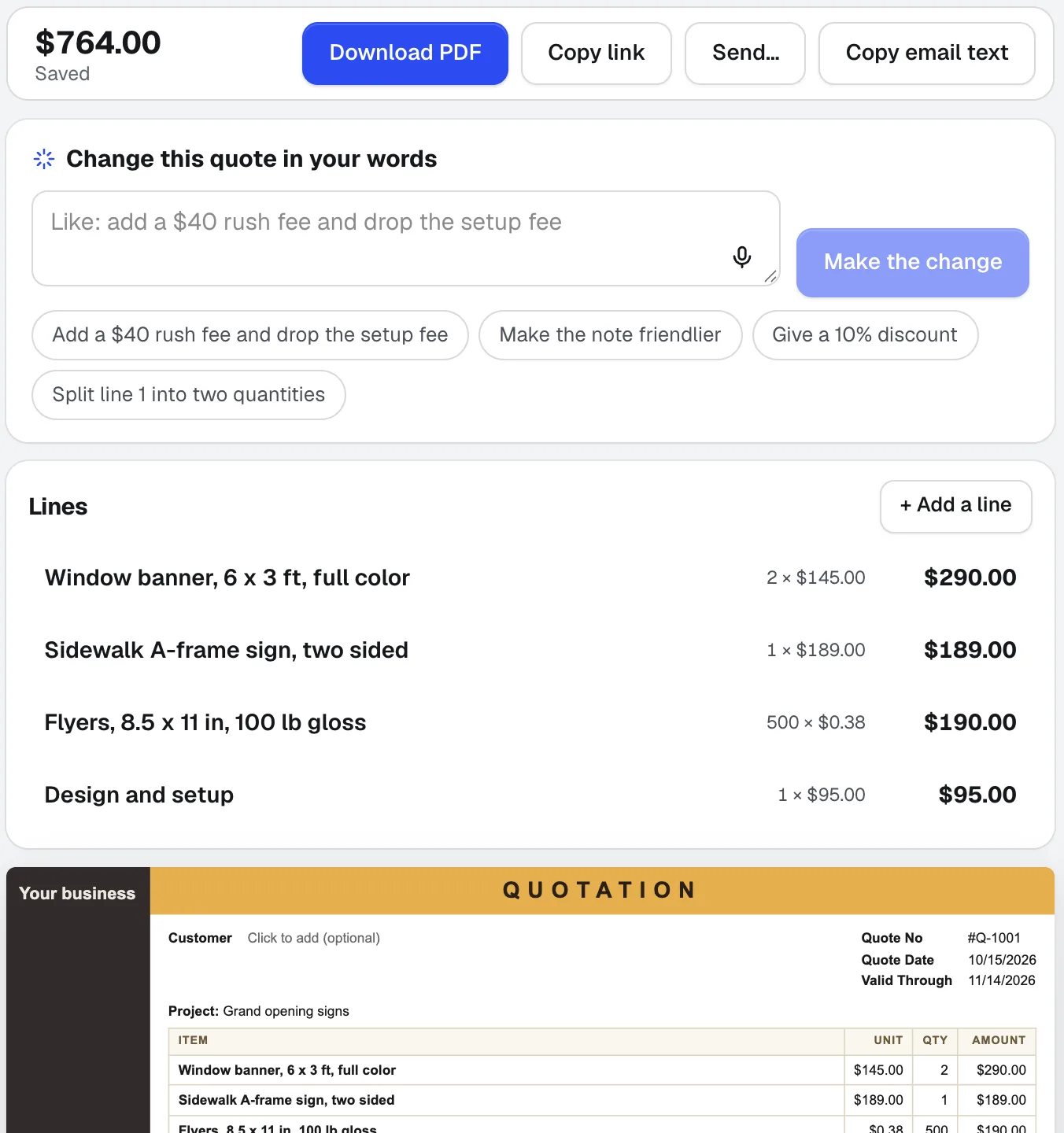
NewPaste a customer's email, dictate the job, or add a photo of a handwritten list. Quote Studio is quoting software that drafts a one-page quote using only your own prices, then you download the PDF or send a live page your customer accepts online.
Use Print file check on upload today.
Make a free aiKit account and open Print file check on upload, plus every other tool in your kit.
Page last checked against the product on 2026-10-16.