

Screen RecorderNew
Record your screen and your face, then send a link
aiKit's Screen Recorder records your screen, your camera or both right in the browser. Press Stop and the link is ready, with an AI summary, chapters, a to-do list and captions written from what you said.
Free account, no card. Already using aiKit? Log in to open Screen Recorder
What you get
Record your screen, your camera or both right in the browser, then send a link.
The link is ready when you press Stop
The video is sent to the cloud while you talk, so only the last few seconds are left when you stop. Copy the link and paste it anywhere.
A recording is never lost
Every second is also kept on your computer until the cloud confirms the whole file. A closed tab, a sleeping laptop or a dropped connection finishes sending next time.
Notes written from what you said
A title, a summary, key points, chapters and a What to do next list appear beside the video on your link, plus captions and a transcript where every line jumps to its moment.
Clean it up in a click
Trim the start and end and remove long pauses and ums. The link plays the cleaned-up version right away; the download stays the full original.
Organized like a real video library
Folders inside folders, videos filed under your aiKit clients, search, sort, Trash, and drag a video onto a folder to move it.
Share it anywhere
Copy the link, email it from aiKit with the video's picture and a Watch button, post it to LinkedIn, Facebook, X or WhatsApp, text it, or embed the player on a website.
Every feature
Everything in Screen Recorder
The complete list, from the tool as it works today.
- Screen + camera, screen only, or camera only, recorded in Chrome, Edge or Safari with nothing to install; camera recording on phones
- A round camera bubble on your screen recording, in the corner and size you pick, plus your microphone and the tab or computer sound when the browser offers it
- A 3-second countdown, pause and resume, start over, and recording controls that can float over your other apps (Chrome and Edge)
- Saved as you go: the video goes to the cloud while you record and a copy stays on your computer, so the link is ready a second after Stop and a closed tab or dropped connection never loses it
- A watch page anyone can open from the link with no account, with downloads you can turn on or off
- Link settings: anyone with the link, only you and your team, a password, an end date, or a brand-new link
- A library of your recordings with search, view counts, Copy link and Download
- An AI title, summary, key points, chapters and a What to do next list from what was said, beside the video on your link, plus captions and a searchable transcript where every line jumps to its moment
- Change the notes with any request in your own words
- Clean it up: trim the start and end and remove long pauses and ums; the link plays the cleaned-up version at once
- Folders (inside folders), videos filed under your aiKit clients, Recent, Trash, search, sort, grid or list, and bulk move
- Share from one window: copy the link, email it from aiKit or your own email app, post to LinkedIn, Facebook, X or WhatsApp, text it, or embed the player on a website
What’s included
What you get with Screen Recorder, and how it works with the rest of aiKit
Included with a free aiKit account
- Screen + camera, screen only, or camera only, recorded right in the browser
- Up to 10 minutes per video and 25 videos kept on the free plan; paid plans record up to 2 hours per video
- A share link with password, team only, end date and download settings
- AI title, summary, key points, chapters, to-do list, captions and transcript
- Clean it up: trim the ends and remove long pauses and ums
- Folders, clients, search, Trash, and the Share window (email, social, text, embed)
What uses AI, and what’s free
Writing down what was said and making the notes (title, summary, chapters, to-dos) use your monthly AI allowance; only the sound is sent, never the picture. Recording, uploading, the share link, Clean it up, folders, sharing and downloads use no AI.
Works with your other aiKit tools
- Transcribe & Summarize: The notes are made by the same transcript reader as Transcribe & Summarize, pointed at your video message.
Keep Screen Recorder in any of your kits, next to the tools you use with it. One account and one monthly AI allowance cover every tool.
How it works
From first click to finished, in 5 steps.
Pick what to record
Screen + camera (your screen with you in a round bubble), Screen only, or Camera only. Name it if you like, and pick your camera and microphone.
Talk it through
Press Start recording, pick the tab, window or screen to share, and go. Pause and Resume any time; the free plan records up to 10 minutes per video.
Press Stop and get the link
The link is ready at once, and the AI notes follow a moment later: title, summary, chapters, to-dos and captions.
Tidy it and choose who can watch
Trim the ends or cut pauses and ums. Add a password, keep it to your team, set an end date, or turn downloads off.
Send it
Open Share: copy the link, email it, post it, text it or embed it. Viewers watch in their browser with no account.
Who it’s for
How different businesses use Screen Recorder
Walk a customer through their quote
A landscaping company records its screen over the quote, points at each line, and emails the link; the to-do list on the watch page reminds the customer to send their address.
Show a client the website changes
A design studio records a two-minute tour of the new homepage, files the video under that client, and sends the link instead of booking a call.
Explain a proof without a phone call
A sign shop records the proof on screen with the owner in the camera bubble, trims the start, and texts the link to the customer for approval.
Short lessons students can rewatch
A tutor records a worked example, and the chapters and transcript let students jump straight to the step they missed.
A personal hello to a new lead
An agent records a 60-second camera-only welcome, and the link opens on any phone with the agent's summary under the video.
Async updates instead of meetings
A consultant records a weekly update on screen, removes the ums, and shares it to a client team that watches when it suits them.
Ideal for
- Owners and teams explaining a change, a quote or a job to a client
- Walking a teammate or a new hire through how something is done
- Saying hello to a new lead with your face, not a form letter
- Reporting a problem on a website by showing it
Good to know
- Not for: Editing a polished social video (use Video Kit)
- Not for: Live meetings or calls
- Not for: Recording your screen on a phone (phone browsers only allow the camera)
- Free plan: up to 10 minutes per video and 25 videos, kept for good. Paid plans: up to 2 hours per video.
- Comments, reply with a video and viewer details are coming in the next rounds. Downloads stay the full original recording.
- Screen recording needs a computer; phone browsers can record the camera only.
Why aiKit
Screen Recorder vs. booking a call or writing a long email
| Point | aiKit Screen Recorder | Booking a call or writing a long email |
|---|---|---|
| Getting the point across | Show your screen and your face; the viewer sees exactly what you mean | Find a time that suits everyone, or write paragraphs of instructions |
| When people watch | Whenever suits them, on any device, no account needed | Everyone at the same time on a call |
| What to do next | An AI summary, chapters and a to-do list sit beside the video | Someone takes notes, or nobody does |
| Mistakes and ums | Cut pauses and ums in a click; the link updates at once | Start over or live with it |
| Keeping it private | Password, team only, an end date, downloads on or off, per video | A forwarded email anyone can read |
Questions
Screen Recorder: questions people ask
Is there a free screen recorder that records my camera too, with no download?
How do I send a screen recording to a client as a link?
What is the aiKit Screen Recorder?
How long can I record, and how many videos can I keep?
What happens if my browser closes or the internet drops while I'm recording?
Can I record my screen on a phone?
Can I put a password or an end date on a video link?
Can I download my recording?
Can I organize my screen recordings into folders and by client?
How do I email or share a screen recording?
Is the Screen Recorder a Loom alternative?
Does the Screen Recorder write a summary and to-do list of my video?
Can I cut the ums and long pauses out of a recording?
Works well with
Tools to add to the same kit
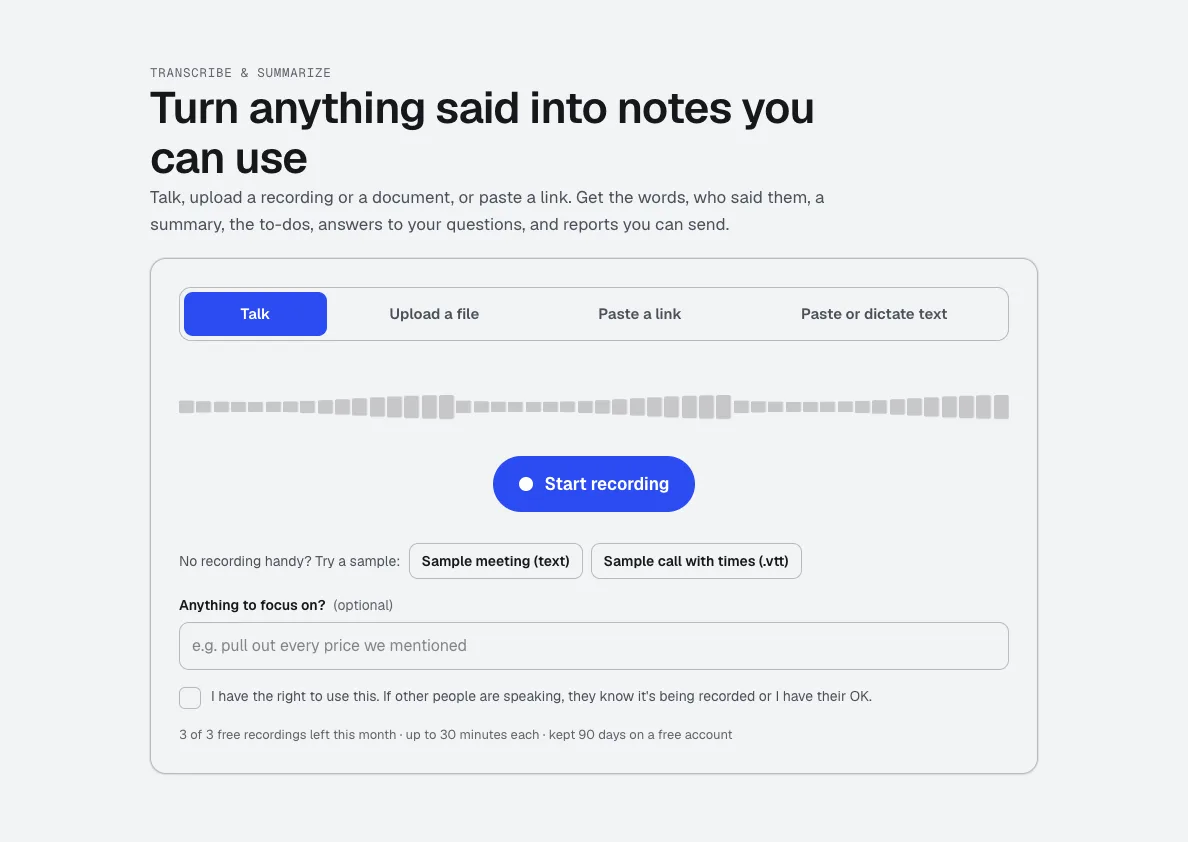
Transcribe & Summarize
NewTalk, upload a recording, or paste a link. Get the transcript with times and speakers, a summary, the decisions and to-dos, and ready-to-send reports like minutes or a client brief.
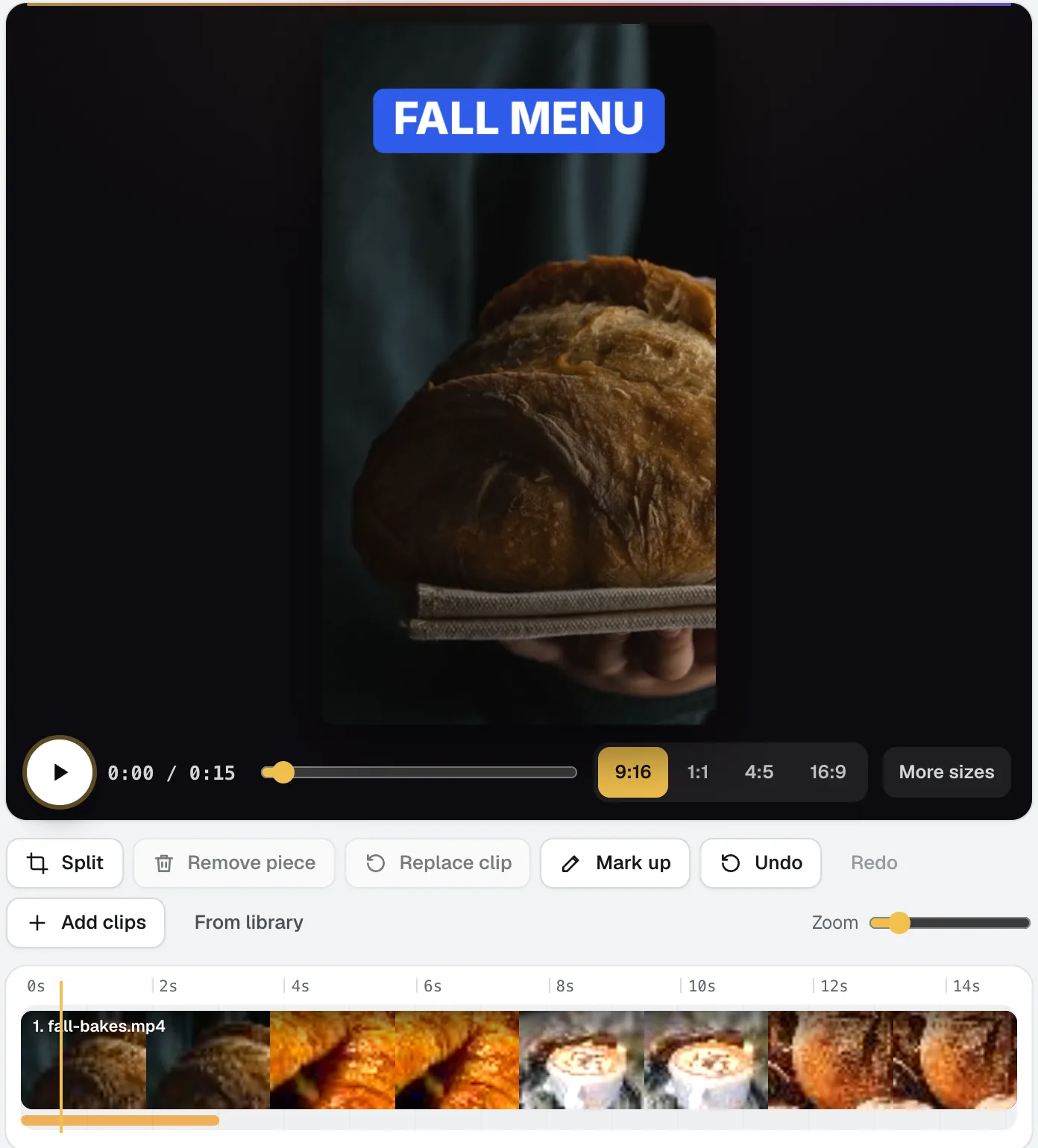
Video Kit
NewVideo Kit is an AI video editor for social media: drop in your clips and edit them like a document. Delete words to cut the video, remove pauses and ums in one pass, and ask for any change in plain words. Captions, sizes, music and your logo are built in.
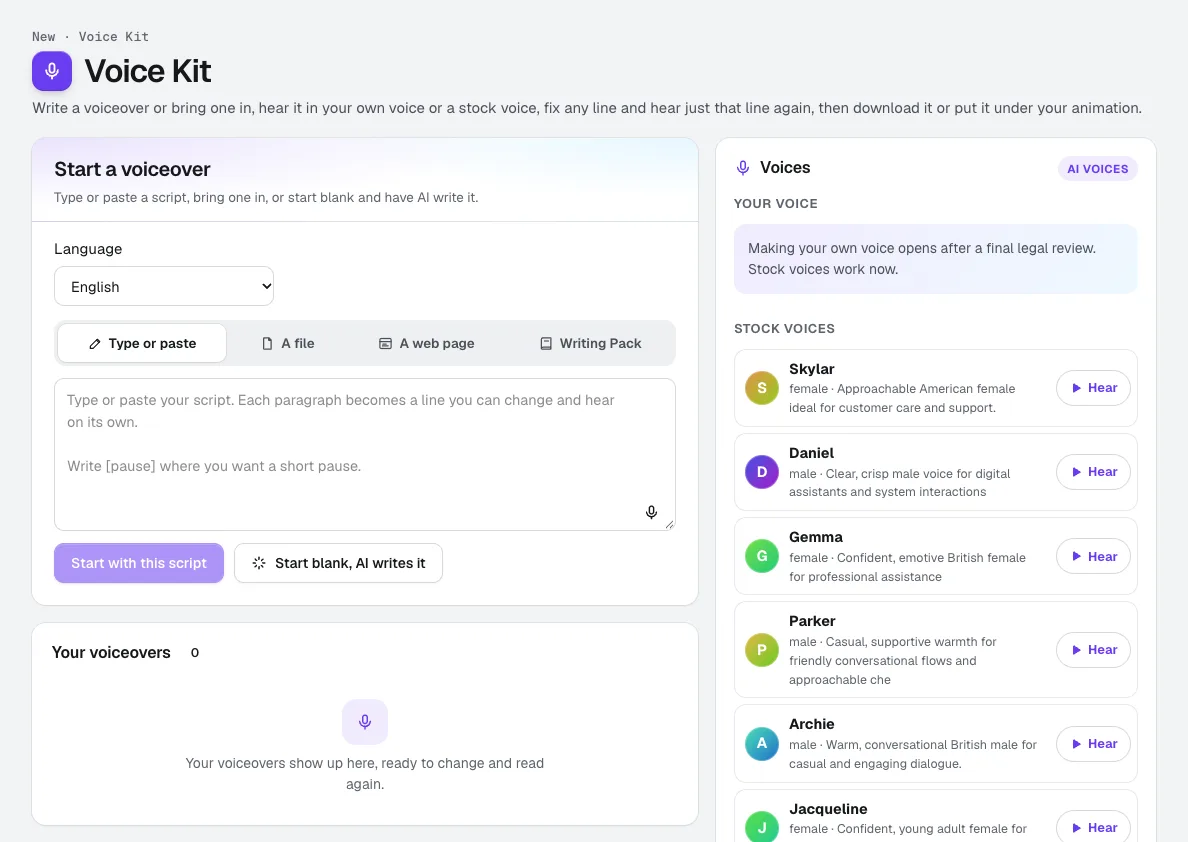
Voice Kit
NewaiKit's AI voiceover generator writes or fits your script in your Brand Voice, a natural AI voice reads it, and you fix any line and hear only that line again. Download it, or put it under your animation or video.
Use Screen Recorder today.
Make a free aiKit account and open Screen Recorder, plus every other tool in your kit.
Page last checked against the product on 2026-10-18.