

Transcribe & SummarizeNew
AI meeting notes, to-dos and a follow-up email from any recording
Talk, upload a recording, or paste a link. Get the transcript with times and speakers, a summary, the decisions and to-dos, and ready-to-send reports like minutes or a client brief.
Free account, no card. Already using aiKit? Log in to open Transcribe & Summarize
What you get
Talk, upload a video or audio file, or paste a YouTube or web link.
Notes you can act on
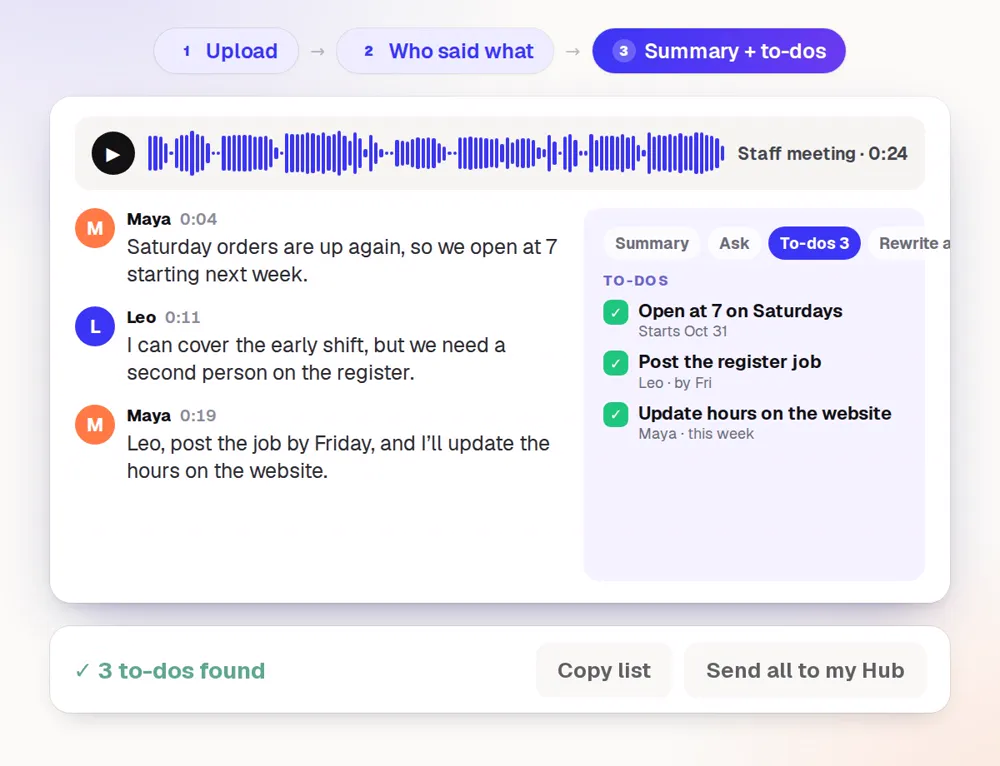
Every recording gets a short, medium or detailed summary, key points, decisions, chapters and to-dos with owners and due dates when they were said.
Ask the recording a question
Type "what price did we agree?" and the answer comes only from what was said, with the times of the lines it used. If it wasn't said, it's marked Not in this recording.
Reports ready to send
Make meeting minutes, a client brief, a follow-up email, a blog post, an outline, study notes, a clean transcript, a translation, or anything you describe. Up to 10 per recording are included.
To-dos straight to your Hub
Send one to-do or all of them to your aiKit Hub inbox, each with the owner, the due date and the recording it came from.
Your audio is never kept
Your browser cuts the sound into short pieces; each is transcribed and dropped. Only the text is saved, and you can delete it any time.
Files in, files out
Upload recordings, documents or transcripts from meeting apps. Download Word, PDF, text, or SRT and VTT subtitles, or share a read-only link.
Every feature
Everything in Transcribe & Summarize
The complete list, from the tool as it works today.
- A transcript with times, in 50+ languages, that you can click to jump around
- Who spoke, estimated from the words, with names you can type in
- A short, medium or detailed summary, key points, decisions and chapters
- To-dos you can send to your Hub
- Reports: meeting minutes, client brief, blog post, follow-up email, or anything you ask for
- Downloads: Word, PDF, text, SRT and VTT subtitles, plus a read-only share link
What’s included
What you get with Transcribe & Summarize, and how it works with the rest of aiKit
Included with a free aiKit account
- Runs on your account's tokens, the same tokens every aiKit AI tool uses
- Recordings up to 30 minutes each on a free account
- A transcript with times and estimated speakers, in 50+ languages
- A summary, key points, decisions, chapters and to-dos with every recording
- Up to 40 questions and up to 10 reports per recording
- Word, PDF, text, SRT and VTT downloads, plus a read-only share link
- Text kept for 90 days on a free account; the audio is never stored
What uses AI, and what’s free
Each recording, upload or link uses your account's tokens, the same tokens every aiKit AI tool uses, and comes with its transcript, summary, to-dos and questions. Reports made from it use AI too. Editing the transcript, find and replace, renaming speakers, downloads, share links and sending to-dos to your Hub use no AI.
Works with your other aiKit tools
- aiKit Hub: Send one to-do or all of them to your Hub Inbox, each with the owner, the due date and the recording it came from.
Keep Transcribe & Summarize in any of your kits, next to the tools you use with it. One monthly AI allowance covers every tool you add.
How it works
From first click to finished, in 4 steps.
1. Bring in the conversation
Record with your microphone, upload an MP4, MOV, MP3, M4A, WAV or WebM file, paste a YouTube or web link, or paste text. Confirm everyone knows it's recorded.
2. Read the transcript
Click any line to jump to that moment. Type real names into the speaker boxes, and use Find and replace to fix a misheard name everywhere.
3. Get the summary and to-dos
Pick the summary length, check the decisions, and send the to-dos to your Hub.
4. Make what you need to send
In the Rewrite as tab, choose Follow-up email, Meeting minutes or another report, or type your own request, then download it or copy it.
Who it’s for
How different businesses use Transcribe & Summarize
A kickoff call becomes a brief
An agency records a client kickoff, makes a Client brief from it, and sends the to-dos to its Hub so the designer and writer each see their tasks the same afternoon.
The site visit, written down
A contractor records a walk-through with a homeowner, asks "which rooms get new flooring?", and sends a follow-up email that lists exactly what was agreed.
Study notes from a lecture
A student uploads a recorded lecture and makes Study notes with headings, key ideas and terms, then downloads SRT subtitles for the video.
A podcast episode into a blog post
A coach uploads a 25-minute episode and turns it into a blog post and a chapter list without listening back to the whole thing.
No missed details on a rush order
A print shop records a customer call about an event order and asks the transcript for quantities, sizes and the delivery date before writing up the job.
Buyer calls, summarized
An agent uploads a recorded buyer consultation and keeps a medium summary with the must-haves and the next steps, with times to jump back to each point.
Ideal for
- Owners and managers who talk to customers and need the notes written for them
- Agencies and shops turning a client call into a brief or a follow-up email
- Anyone with a video or a long web page and no time to watch or read it
Good to know
- Not for: Joining a live Zoom or Meet call as a bot (not built yet)
- Not for: Legal or medical records that must be word-for-word certified
- Not for: Recording people without their OK
- The AI can mishear names, numbers and heavy accents. Read it before you rely on it.
- Speakers are guessed from the words, not the voices, so two people with similar lines can be mixed up.
- Audio is never stored. The transcript is kept until you delete it, or 90 days on a free account.
- YouTube links often can't be read from our servers (we never download videos), so uploading the file is the reliable way. Pages that need a login can't be read.
- Each recording uses your account's tokens; on a free account a recording is up to 30 minutes.
Good to know
Before you use Transcribe & Summarize
Check names, numbers, and consent. Transcripts can mishear names, numbers, and technical words. Check them before you send minutes or a brief. Tell people when you record them, since recording laws vary.
Questions
Transcribe & Summarize: questions people ask
Can AI turn my meeting recording into notes and tasks?
What's the fastest way to write a follow-up email after a client call?
Can I get subtitles for my video from a transcript?
Is there a free AI meeting notes tool?
Does aiKit's meeting notes tool need to join my calls?
How do I transcribe a Zoom or Teams recording?
How do I make meeting minutes from a recording?
Can I turn a lecture or podcast into study notes or a blog post?
How accurate is an AI transcript, and what should I check?
What is Transcribe & Summarize?
Can Transcribe write down the lyrics of a song?
Does Transcribe & Summarize store my recordings?
Can I summarize a YouTube video or a web page?
What kinds of files can I upload to Transcribe & Summarize?
Can I ask a recording questions?
Works well with
Tools to add to the same kit
aiKit Hub
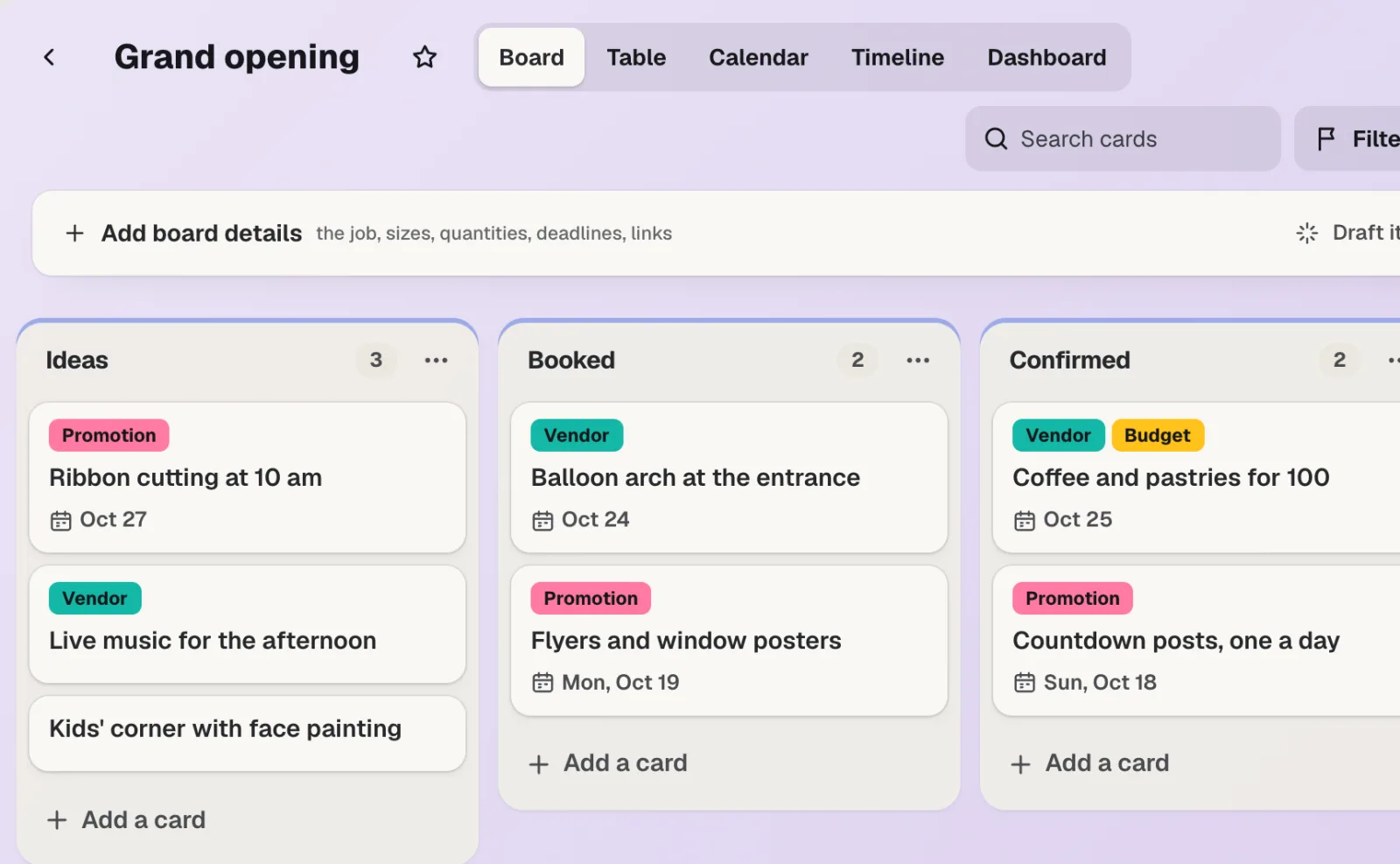
NewaiKit Hub is client project management software: to-do lists that flip into boards, messages, chat, a shared schedule, docs and files, and a client view that shows only what you choose. Your quotes, proofs, bookings and website requests live on the cards they belong to.
Writing Pack
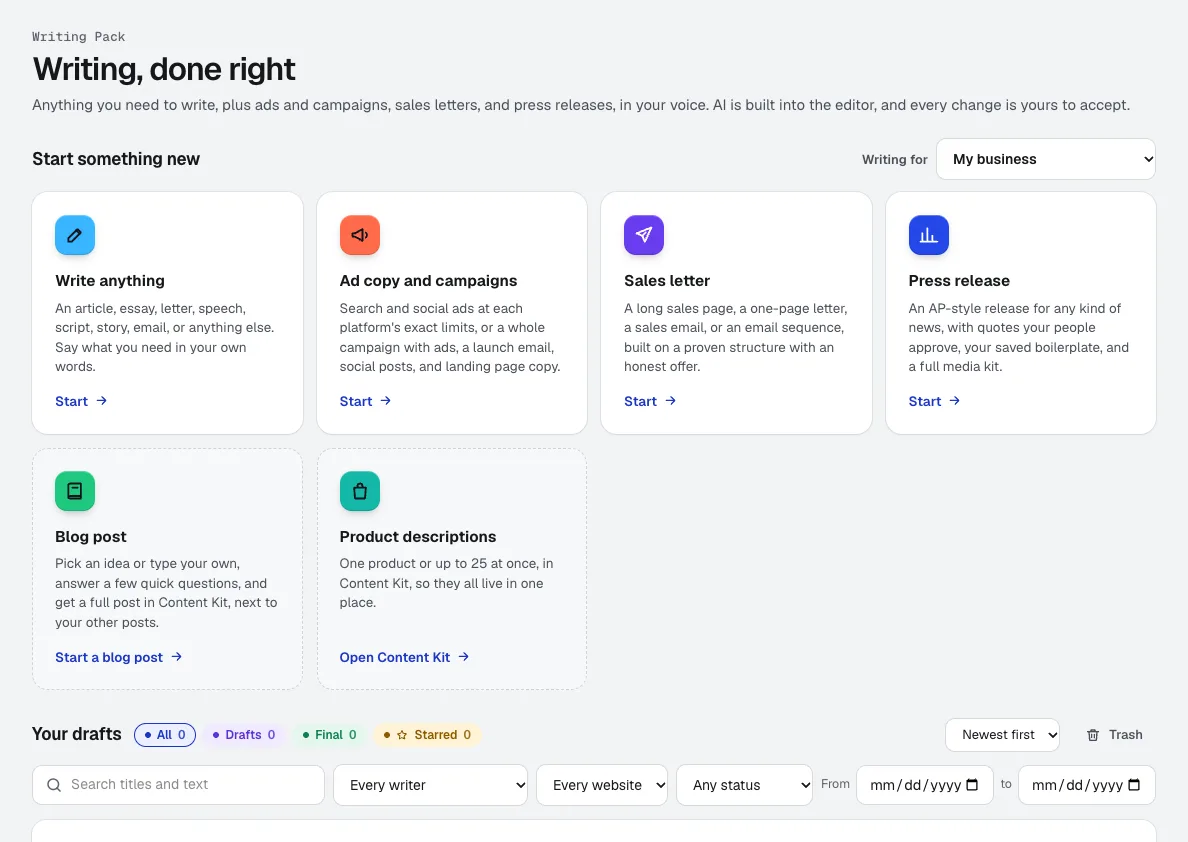
NewAn AI copywriting tool for anything from a speech to a full ad campaign, in the voice you set in Brand Voice. AI is built into the editor, and every change it suggests is yours to accept or reject.
Video Kit
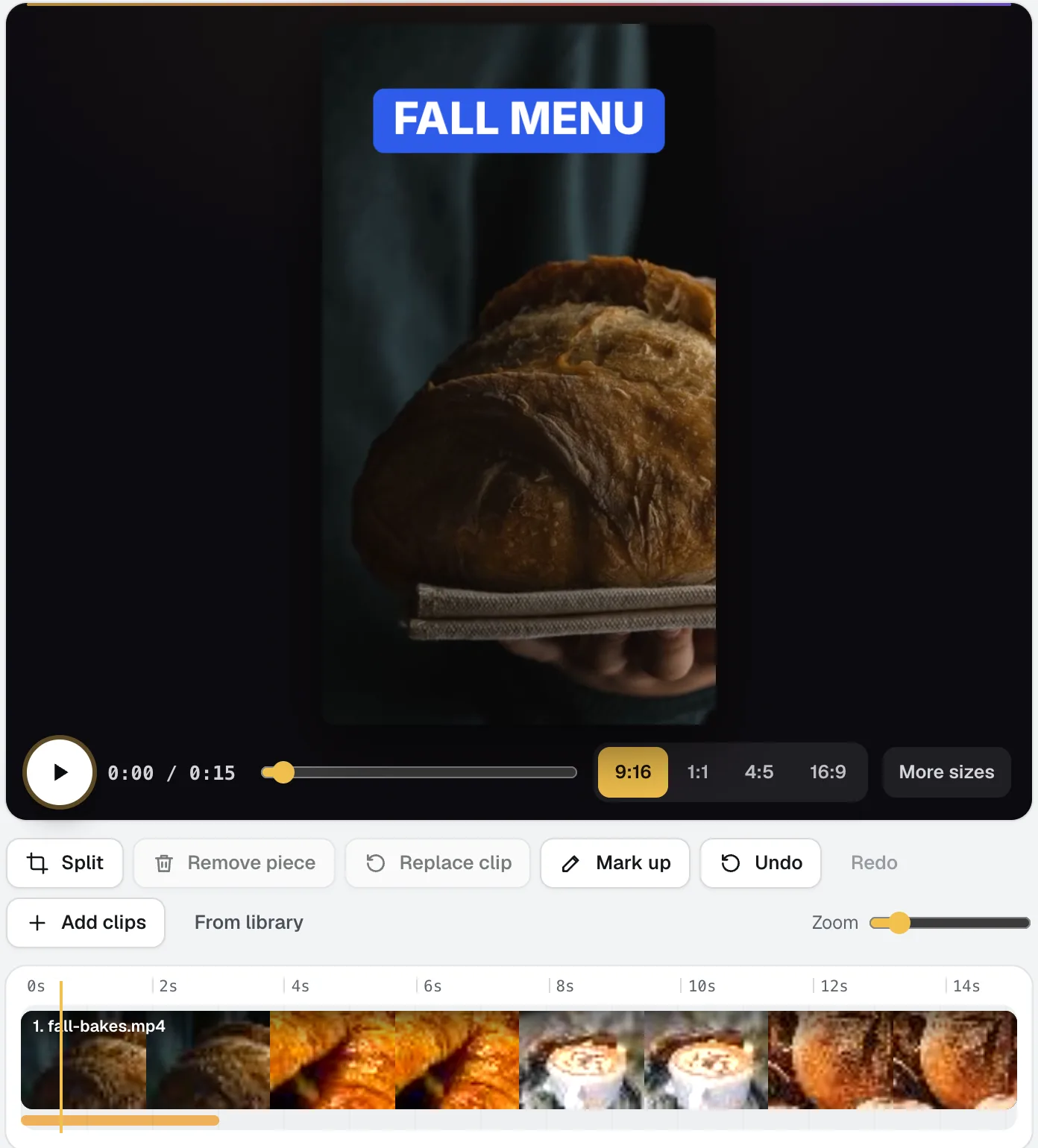
NewVideo Kit is an AI video editor for social media: drop in your clips and edit them like a document. Delete words to cut the video, remove pauses and ums in one pass, and Ask for changes in plain words. Captions, sizes, music and your logo are built in.
Use Transcribe & Summarize today.
Make a free aiKit account and open Transcribe & Summarize, plus every other tool in your kit.
Page last checked against the product on 2026-10-20.