

The situation
A lot of client communication is explaining something on a screen: the report, the new page, the proposal, the settings they need to change. Written out, it becomes a long email nobody reads; booked as a call, it costs both sides half an hour for five minutes of content.
A recorded walkthrough lets the client watch when it suits them, rewatch the hard part, and reply at the exact moment they have a question. It only works if recording is instant, the link is ready right away, and the client can watch on any device without signing up.
The aiKit tools for this job
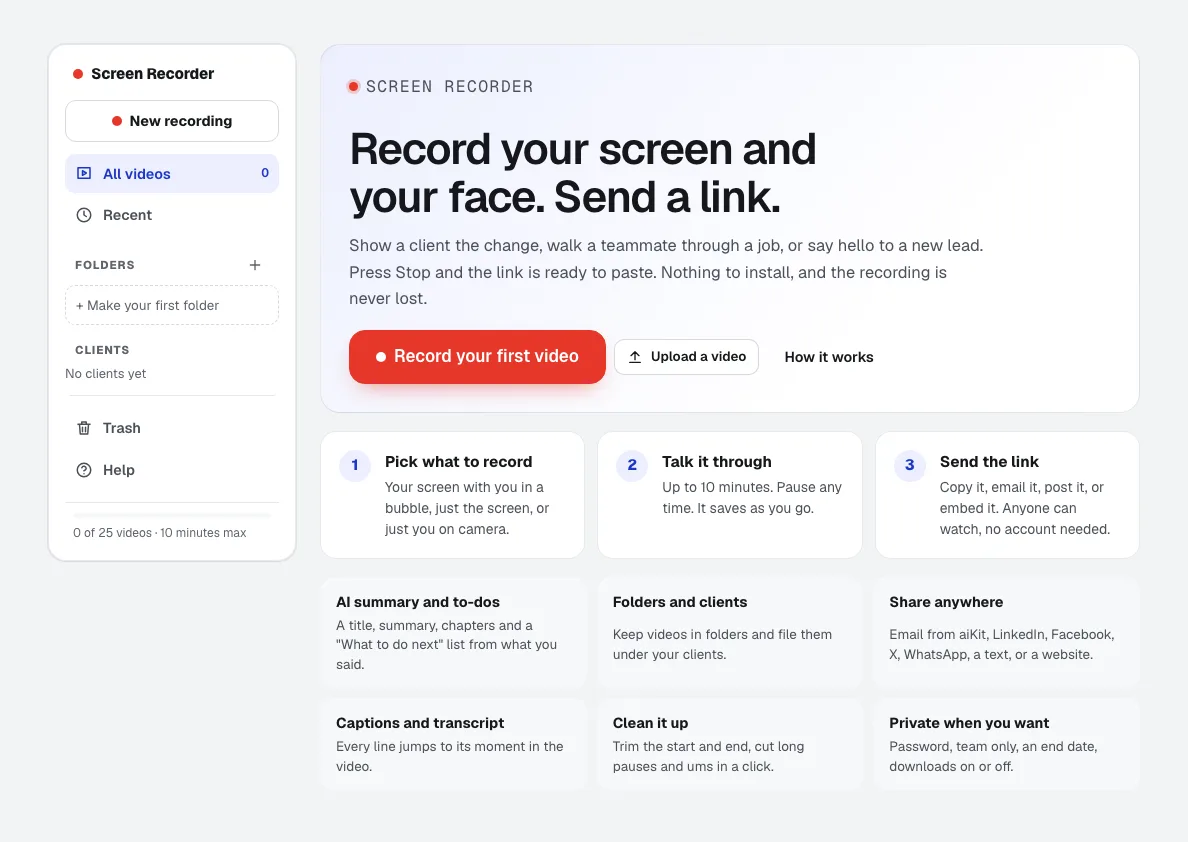
- Screen Recorder: Records screen and camera, gives an instant link, AI notes and captions, comments at a moment, and video replies.
- Transcribe & Summarize: The same transcript reader powers the recording's notes and searchable transcript.
- Quote Studio: Add a video when you send a quote, so the client hears you explain it.
Step by step
Pick what to record
Screen + camera (your screen with you in a round bubble), Screen only, or Camera only, in Chrome, Edge or Safari with nothing to install.
Screen Recorder →Talk it through
Press Start recording, pick the tab, window or screen, and go. Draw with the pen, highlighter or arrows while you talk. Pause and resume any time.
Screen Recorder →Press Stop and copy the link
The link is ready at once; the AI title, summary, chapters, to-dos and captions follow a moment later.
Screen Recorder →Tidy it and choose who can watch
Trim the ends and remove long pauses and ums. Add a password, keep it to your team, set an end date, or turn downloads off.
Screen Recorder →Send it and get answers
Copy the link, email it, text it or embed it. Viewers comment at a moment or record a video reply, with no account, and you are notified.
Screen Recorder →
Examples
A monthly report, explained
Clearpath Advisory, an invented consulting firm, records a six-minute walk through the client's monthly numbers instead of a call. The client watches on a phone, jumps to the chapter on costs, and leaves a comment at 3:40.
A new homepage tour
Bayside Creative records a two-minute tour of a client's new homepage, files the video under that client, and sends the link instead of booking a review call.
A hello to a new lead
A business coach records a 60-second camera-only welcome for a new lead, with a button under the video that opens the coach's booking page.
Tips
- Keep walkthroughs under five minutes; split longer topics into chapters or a second video.
- Use the teleprompter or a starter script for videos you will reuse.
- Set a password or an end date on anything with private client numbers.
- Record on a computer; phone browsers allow the camera only, not screen recording.