

The situation
Agencies run many projects for many clients at once, and the work lives in too many places: tasks in one app, feedback in email, files in a shared drive, approvals in a chat thread. Clients want to be in the loop; the agency wants to keep budget notes, internal debates and rough drafts out of their sight.
A project tool for agencies has to handle both audiences in the same project, without a second workspace for the client and without anyone wondering whether a comment was visible.
The aiKit tools for this job
- aiKit Hub: Projects, lists, boards, messages, files and the client view, with rules that move work along.
- Customer Proofs: Cards link proofs and show Customer approved.
- Quote Studio: Cards link quotes and move when the client accepts.
- Transcribe & Summarize: A kickoff call's to-dos go straight into the Hub.
Step by step
Start a project or import one
Press New project, or bring work over from another project tool or a spreadsheet, with a preview first and Undo after.
aiKit Hub →Invite the team and the client
Everyone signs in with their own account. Clients see only items you switch to Clients see this, and Preview as client shows exactly what they see.
aiKit Hub →Plan the work
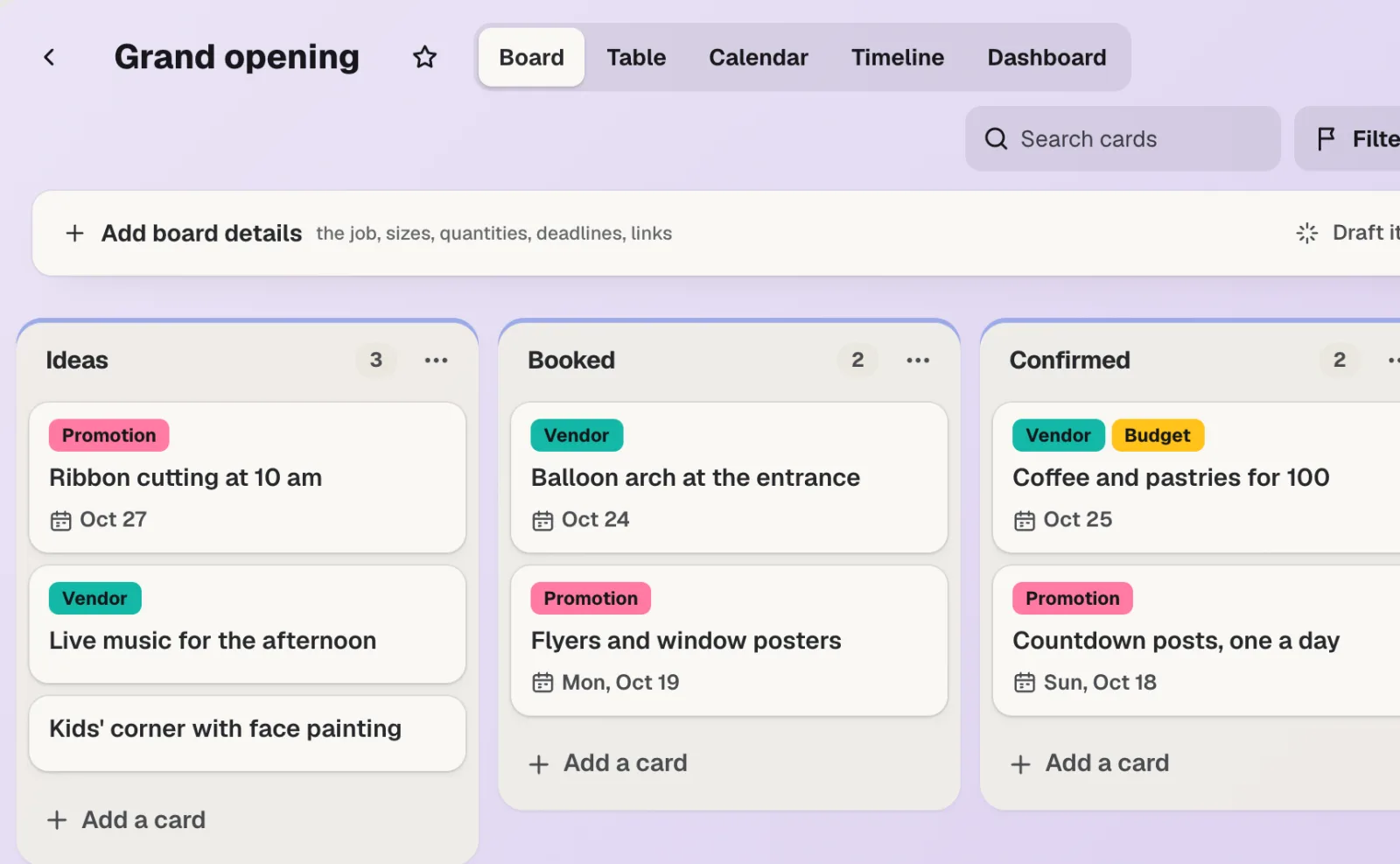
Make to-do lists and flip them between List, Board, Table, Calendar, Timeline and Dashboard. Set dates, owners, labels and custom fields.
aiKit Hub →Automate the busywork
Write rules in plain English, such as "When a card moves to Done, notify the client", with no monthly run limit.
aiKit Hub →Run the day from My Day
See everything assigned to you across every project, capture to-dos by typing, talking or snapping a photo, and keep up with Hey! notifications.
aiKit Hub →
Examples
A website launch the client can follow
Northgate Marketing, an invented agency, shares the launch checklist and design messages with the client, keeps budget notes team-only, and checks Preview as client before every share.
Approvals that move the card
When a client approves a homepage proof in Customer Proofs, the linked Hub card shows Customer approved and moves to Ready to build on its own.
Kickoff call to tasks the same afternoon
Bayside Creative records a client kickoff in Transcribe & Summarize, makes a client brief, and sends the to-dos to the Hub, where the designer and writer each see their tasks.
Tips
- Use team-only notes inside client threads for internal comments instead of a side chat.
- Check Preview as client before you share a new list; it shows exactly what the client sees.
- Write rules for anything you do more than twice a week, such as moving a card when a proof is approved.
- Check the pricing page for the team members, client seats and projects each plan includes.