

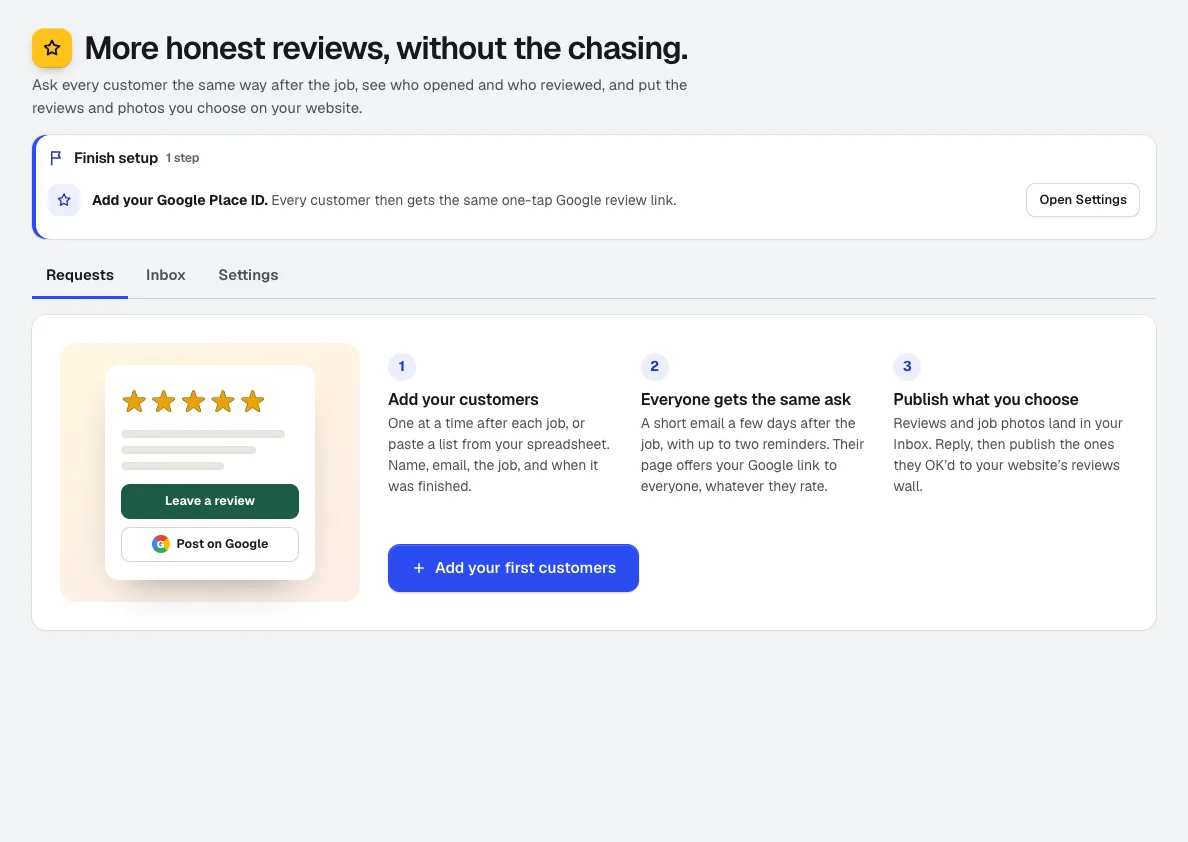
What you need
- Your Google review link or Google Place ID (the short review link from your Google Business Profile works)
- A list of recent customers with their emails: typed in, pasted, or a CSV
- A free aiKit account
Steps
Set up your business and Google link
Open Reviews and go to Settings. Enter your Business name and paste your Google Place ID or your Google review link; aiKit pulls the ID out. Press Check it opens your listing to confirm the button lands on Google's write-a-review page.
Reviews & customer photos →Write the request once, honestly
Under The request, set the subject and message with fill-ins like {first_name} and {job}. Write it in my Brand Voice drafts wording for you to read. Wording that asks only happy customers, asks for a star count, steers unhappy customers elsewhere, or offers anything for a review is blocked, with the reason shown. Email me a test sends it to your own address only.
Reviews & customer photos →Choose the timing and reminders
Under Timing, set how many days after the job to ask and turn reminders on. Each customer gets up to two reminders (4 and 10 days after the first email to start), and they stop on their own once the customer opens their page or reviews. Every email has a No more reminders, please link.
Reviews & customer photos →Add your customers
Press Add customers. Choose One customer, A list or CSV (up to 500 at a time), or From finished jobs to pull in Quote Studio jobs marked Done. Pick when to ask: your usual wait, Now, or Don't send if you'd rather copy their link yourself. Anyone already on your list is skipped, so nobody is asked twice.
Reviews & customer photos →Let customers review from their phone
Each customer's page has five big stars, a box for a few words, a Post on Google button that is the same for everyone, a place to share photos of the finished job, and a private note option. After they send, Copy my review lets them paste the same words on Google.
Reviews & customer photos →Track the numbers that matter
On Requests, the tiles show Scheduled, Sent, Opened, Clicked, Reviewed and Went to Google; each one opens the customers behind it. Set a monthly Google goal in Settings to see a progress bar. Google doesn't report whether a customer actually posted, so Went to Google counts the button press.
Reviews & customer photos →Reply, and publish the best to your website
Every review lands in the Inbox first. Reply adds a public reply, and Suggest a reply in my voice drafts one for you to edit. On my website shows a review or photo on your aiKit website's reviews wall, only when the customer said it's OK to show.
Reviews & customer photos →
Tips
- Ask while the job is fresh. A request two or three days after the work is done gets far more answers than one sent weeks later.
- Ask everyone. Choosing who to ask by how you think they'll rate is review gating too, and Google doesn't allow it.
- Never offer a discount, gift or prize for a review. You may thank customers for photos, but that thank-you must go to everyone who shares photos and never mention reviews.
- Reply to every review, especially the critical ones. Thank them, own the problem without arguing, and invite them to talk. Future customers read the replies.
- Put the QR code from Your public review page on receipts, invoices and the counter, so walk-in customers can review without an email.
Questions
What is review gating?
Can I offer a discount for a Google review?
How do I find my Google review link?
Can I send review requests by text message?
Will the reviews show on my website?
Terms in this guide
How businesses use it
AI tools for bakeries: specials, photos, videos and reviews
AI tools for bakeries: daily special posts, menu flyers, captioned videos and review asks from one account. Free to start with a monthly AI allowance.
Use caseQuote software for contractors: from a voice note to a signed yes
Turn a voice note or a customer's email into a one-page contractor quote priced from your own prices. Send a live page they accept by typed name.
Use caseOnline booking for salons, on your own website
A booking page on your salon's website: services, stylists, real open times, reminders and self-serve changes, plus a day calendar for the front desk.
Checked against the product on 2026-10-31.