

What you need
- The best copy of the logo you can find: an original vector file is ideal, otherwise the largest PNG or JPG you have
- A free aiKit account (Vectorize Kit opens for every signed-in account)
- Optional: your brand colors as HEX codes, if the file's colors are off
Steps
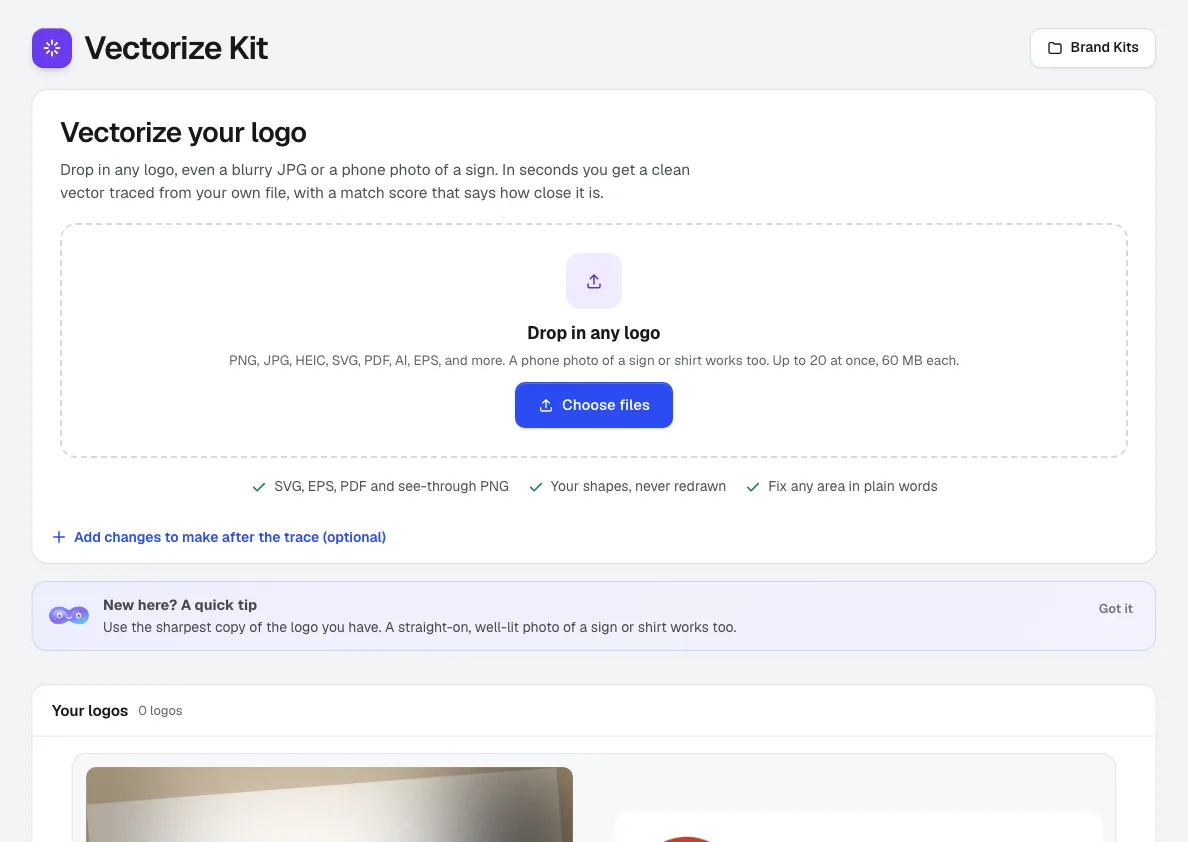
Open Vectorize Kit and drop in the logo
Open Vectorize Kit from the Tool library. Drag the file onto Drop in any logo, or press Choose files. It takes PNG, JPG, HEIC, WebP, GIF, BMP, TIFF, PSD, SVG, PDF, AI and EPS, up to 60 MB each and up to 20 files at once. On a phone, Take a photo lets you photograph a logo on a sign, shirt or card; the photo is straightened and cropped to the logo first.
Vectorize Kit →Add a note or a change, then press Vectorize
Anything we should know? takes an optional note. Add changes to make after the trace lets you ask for edits up front, like making it one color or removing the tagline. Your logo is always traced from your own file first as version 1; your requested changes become version 2, so you can always compare.
Vectorize Kit →Read the match score and check the differences
A finished logo shows a match score measured against the picture you uploaded. A check mark means 90% or better. Drag the Before and after slider, zoom to 2x or 4x on small lettering, and press Show differences to see colored marks wherever the vector differs from your original. A real vector file keeps its own shapes exactly and is not traced again.
Vectorize Kit →Fix any area in plain words
If something is off, type it the way you'd tell a designer in Fix any area, in plain words (for example, use our green #2E7D32 instead, or some text at the bottom left disappeared) and press Make the change. Missing art is rebuilt from your file's own pixels, never retyped. Every change is a new version; Undo last change and Version history take you back at no cost.
Vectorize Kit →Download your vector
Under Before and after, Download your vector has four buttons: SVG for any app and any size, EPS for sign and print shops, PDF for printers, and PNG with a see-through background. Download all (ZIP) in the header holds every version in every format.
Vectorize Kit →Get the other versions and the exact colors
Further down, the page shows Full color, Black, White for dark backgrounds, and one-color versions, with more under More versions (grayscale, reversed, a small-size version). Colors lists each brand color in HEX, RGB and CMYK with the closest spot color match, and Copy all copies them as text.
Vectorize Kit →Check it for the way it will be printed
Print readiness has a card for screen printing, embroidery, laser engraving, pad printing, cut vinyl, DTF transfers, and screens and web, each marked Ready, Check first or Needs a change. Open a card for the fix (such as Make lines thicker and drop tiny bits) and the method's own files. Put it on a product opens Mockup Studio with the logo placed.
Vectorize Kit →
Tips
- Start from the largest, least-compressed copy you can get. A screenshot of a website logo traces worse than the original PNG, and a real vector file (SVG, AI, EPS or vector PDF) keeps its exact shapes.
- Lettering under about 8 pixels tall in your file is too small to trace exactly. Send a bigger copy, or plan to retype that line in your design app.
- Spot color matches are approximate. Before you print a brand color on a shirt or sign, compare it with a printed swatch, not your screen.
- For cutting, engraving or one-color printing, choose Flat vector only if the logo has a soft, painted part, so every part of the file is a real vector shape.
- Use the White version on dark shirts and photos instead of placing the full-color logo on a dark box; it reads better at small sizes.
Questions
How do I convert a JPG logo to a vector file?
What is the difference between SVG, EPS and PDF for a logo?
Will the vector look exactly like my original logo?
Can it design a new logo for me?
Can I vectorize several logos at once?
Terms in this guide
How businesses use it
Virtual samples for promo products, in every color, with a spec sheet
Put a customer's logo on shirts, caps, mugs and signs in every color, check the decoration, and send a spec sheet and approval link. Free to start.
Use caseLogo vectorizing for screen printers and embroidery shops
Turn a blurry customer logo into a clean vector with a match score, every version, exact colors and a ready-or-not check per print method. Free to start.
Use caseAI quotes for sign shops: from a customer's email to an accepted quote
Paste a sign request and get a one-page quote priced from your own prices, with options and add-ons, then a live page your customer accepts. Free to start.
Checked against the product on 2026-10-31.