

The situation
Screen printers and embroidery shops get the same file every day: a 200-pixel logo pulled from a website, a screenshot of a social profile, a photo of the old shirt. Separations and digitizing need clean shapes and a known color count, so somebody has to redraw it, and that somebody is usually the owner at night.
Auto-tracing alone is a gamble. It merges small letters, adds stray points and returns too many colors. What a shop needs is a vector it can trust, proof of how close it is to the original, and a straight answer on whether it is ready for the method on the order.
The aiKit tools for this job
- Vectorize Kit: Traces the logo into a vector with a match score, every version, HEX, RGB and CMYK colors with the closest spot match, and a print check per method.
- Mockup Studio: Put it on a product opens the finished logo in Mockup Studio for the virtual sample.
- Customer Proofs: Send the vector version to the customer for a typed-name approval.
Step by step
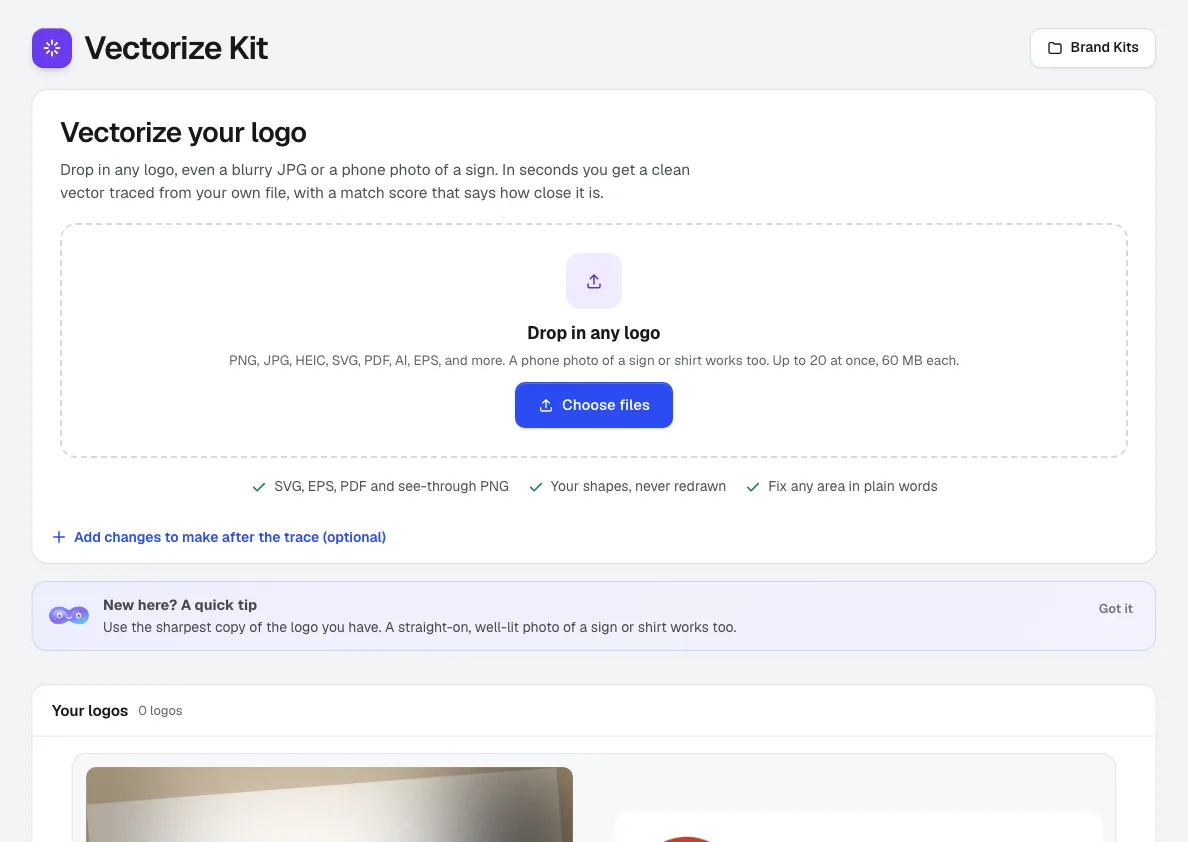
Drop in the logo
Drag up to 20 files at once (PNG, JPG, HEIC, WebP, GIF, BMP, TIFF, PSD, SVG, PDF, AI, EPS) or take a photo on a phone. Add an optional note like "3 colors only", then press Vectorize.
Vectorize Kit →Check the vector
Slide between Your upload and Clean vector, zoom to 2x or 4x, turn on Show differences and read the match score.
Vectorize Kit →Fix any area in words
Say what is off, such as "the small t is missing" or "make it one color navy". Each change is a new version you can undo.
Vectorize Kit →Check it for the method
Each print method card says ready or not, such as embroidery or screen print, with Fix it, for example thickening lines or leaving off small text.
Vectorize Kit →Download and move on
SVG, EPS, PDF or see-through PNG in one click, or every version (black, white, one color, grayscale, reversed, small size) in one ZIP with a brand sheet.
Vectorize Kit →
Examples
From a blurry JPG to an embroidery-ready file
Stitch & Ink Supply, an invented embroidery and print shop, drops in a tiny logo a customer emailed. The vector comes back with a match score, the embroidery card says Needs a fix, and Fix it thickens the lines and leaves off the tagline.
A logo off the side of a truck
A landscaping customer of Pine Hollow Screen Print has no original file. A phone photo of the truck door becomes a vector, with a white version for dark shirts and the colors listed in CMYK with the closest spot match.
Twenty team logos before a league order
A shop doing youth league uniforms drops 20 team logos in at once, checks each result in one list, and sends the finished files straight into Mockup Studio for the jersey samples.
Tips
- Start from the sharpest copy you have; the match score is measured against the picture you upload.
- Use Show differences on small lettering. Very small or blurry text can come back thicker or merged, and that is where it shows.
- Treat spot color matches as a starting point and check a printed swatch.
- For cutting, engraving or vinyl, choose Flat vector only so painted areas become shapes, not pixels.