

The situation
In promotional products, the virtual sample is the sales pitch. A buyer wants to see the logo on the navy cap and the heather tee before saying yes, and a distributor juggling dozens of quotes has no time to wait days for an art department. Too often the sample shows a logo that will not actually embroider, or a print width the decorator never agreed to.
A good virtual sample does three jobs at once: it sells, it sets expectations about method, size and colors, and it travels with the quote so the decorator gets the same facts the customer approved.
The aiKit tools for this job
- Mockup Studio: Places the logo on products in every color with the decoration method, width and ink colors, checks it, and exports a spec sheet.
- Vectorize Kit: Turns the customer's blurry logo into a clean vector first, so the sample is sharp.
- Customer Proofs: Send to makes a proof from the mockup for the customer's typed-name approval.
- Quote Studio: Prices the order from your own price breaks, with the spec sheet alongside.
Step by step
Add the logo and the products
Upload the logo or pick it from Vectorize Kit or your Graphics Library, then add products from the shelf, your own My products, or a supplier photo. Or type "put my logo on a black hoodie and a white mug".
Mockup Studio →Set the decoration
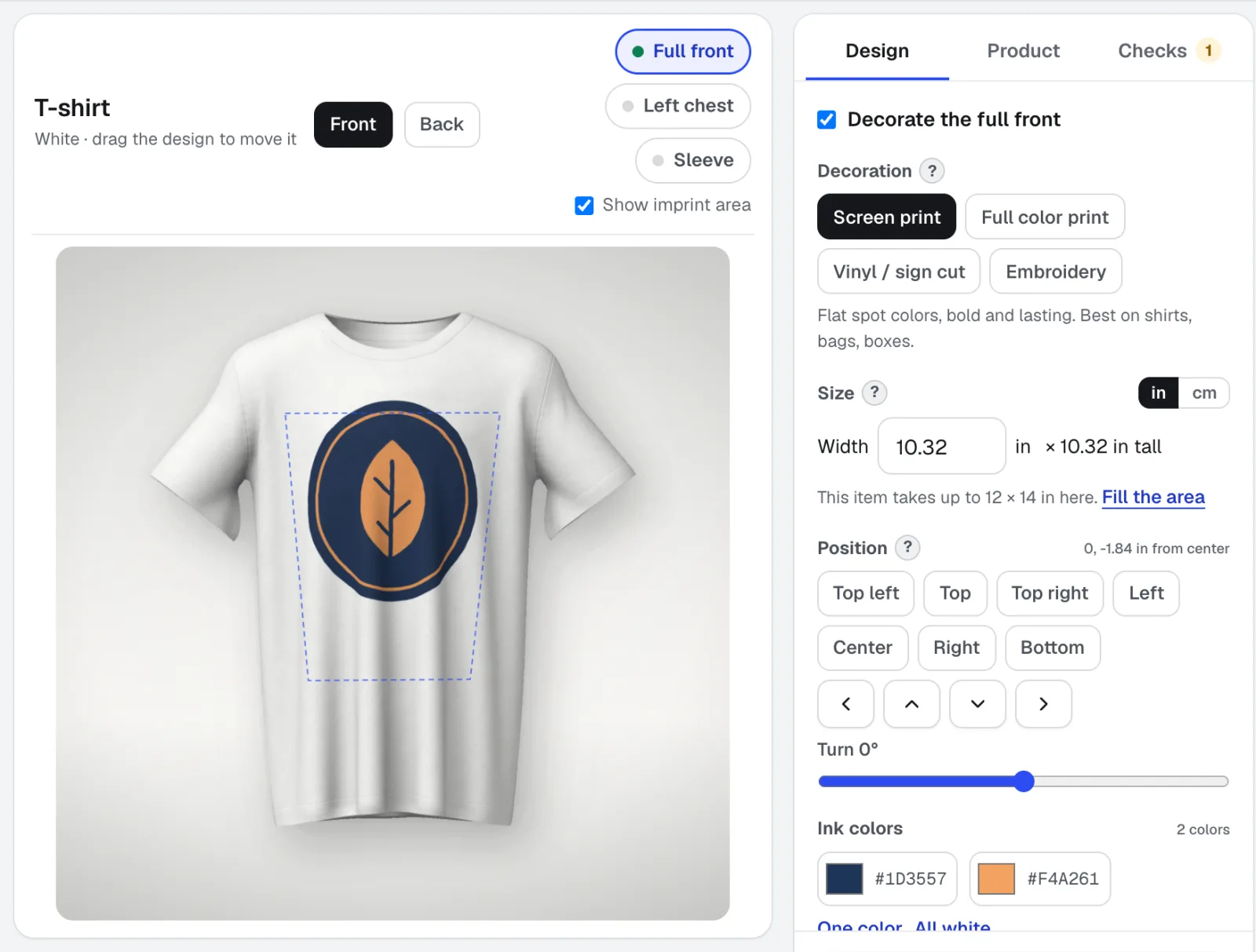
For each location (front, back, sleeve, side) choose the method, the exact width in inches or centimeters, the position, rotation and ink colors.
Mockup Studio →Check and fix
The Checks tab flags what a decorator would catch, like lines too thin for embroidery, too many colors, or a low-resolution logo, with a fix one click away.
Mockup Studio →Show every color
Show the product in every color at once, download PNGs or a ZIP, and export the spec sheet PDF for the quote.
Mockup Studio →Get the yes
Build a presentation the client approves from a private link, or Send to Customer Proofs for a typed-name approval.
Mockup Studio →
Examples
Caps and tees for a company picnic
Bright Harbor Promo, an invented distributor, shows a customer its logo embroidered on caps and screen printed on tees in every stock color, then attaches the spec sheet to the quote so the decorator sees the same widths and ink colors.
A supplier blank the shelf does not have
A customer wants a specific neck gaiter. The distributor drops in the supplier's photos; the product and print area are found automatically, the art follows the fabric's folds, and the gaiter is saved to My products for next time.
A merch presentation for a client's team
Northgate Marketing builds a branded presentation of mugs, totes and notebooks. The client favorites, approves and asks for changes on each product from a phone.
Tips
- Vectorize the logo first in Vectorize Kit; a clean vector makes every mockup sharper and passes more checks.
- Set the real print width in inches. Customers remember the size they approved.
- Save sets by client and project so reorders start from last year's approved samples.
- Remind buyers that screen colors differ from ink and thread; for color-critical jobs, a printed sample still wins.